How to Compress a PDF for Email (Under 10MB in Seconds)
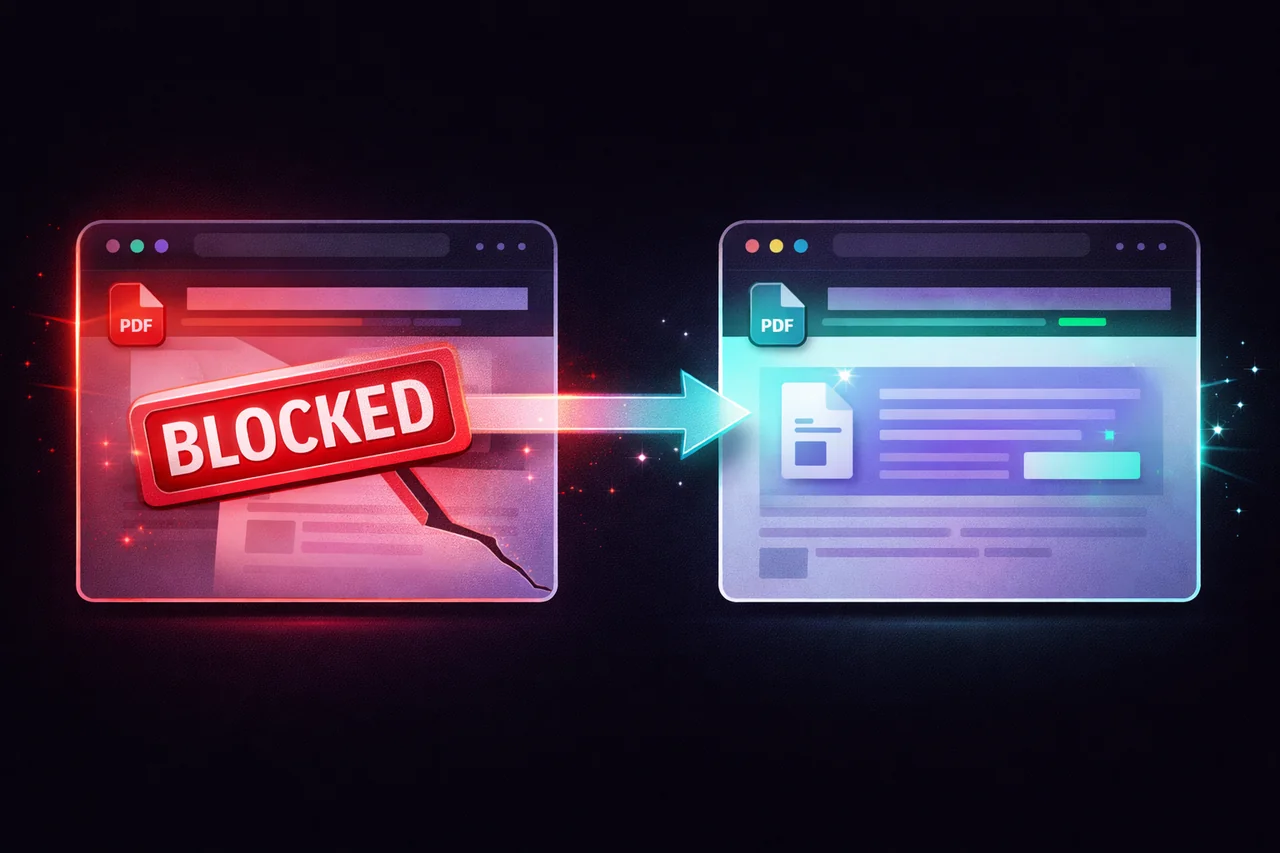
You're about to hit send on an important email — a contract, a report, a signed form — and your email client tells you the attachment is too large.
This happens constantly. PDFs with scanned pages, embedded images, or detailed graphics can easily balloon to 20, 30, even 50MB. Meanwhile, every major email provider has strict attachment limits that don't care how important your document is.
Here's a quick reference for the limits you're actually working with:
Gmail: 25MB per email (attachments + body combined) Outlook / Microsoft 365: 20MB (default; some organizations set it lower) Yahoo Mail: 25MB Apple iCloud Mail: 20MB ProtonMail: 25MB
If your PDF is over these limits, you have two options: upload it to a cloud drive and share a link, or compress the PDF to fit. Compression is almost always faster and simpler — especially when you need the recipient to have the actual file, not a link that might expire or require login credentials.
Why PDFs Get So Large
Before compressing, it helps to understand what's making your PDF heavy. The file size isn't really about how many pages you have — it's about what's on those pages.
Scanned documents are the biggest offenders. When you scan a paper document, each page becomes a high-resolution image. A 10-page scanned contract can easily be 15-20MB because you're storing 10 full photographs, not 10 pages of text.
Embedded images add up quickly. A report with charts, screenshots, or photos will be much larger than one with just text and tables. Each image is stored at its original resolution inside the PDF, even if it displays smaller on the page.
Fonts contribute too. PDFs can embed entire font files to ensure the document looks identical on every device. A document using several custom fonts carries all that font data inside.
Revision history and metadata can quietly inflate file size. Some PDF editors store previous versions, comments, form field data, and editing history inside the file.
How PDF Compression Works
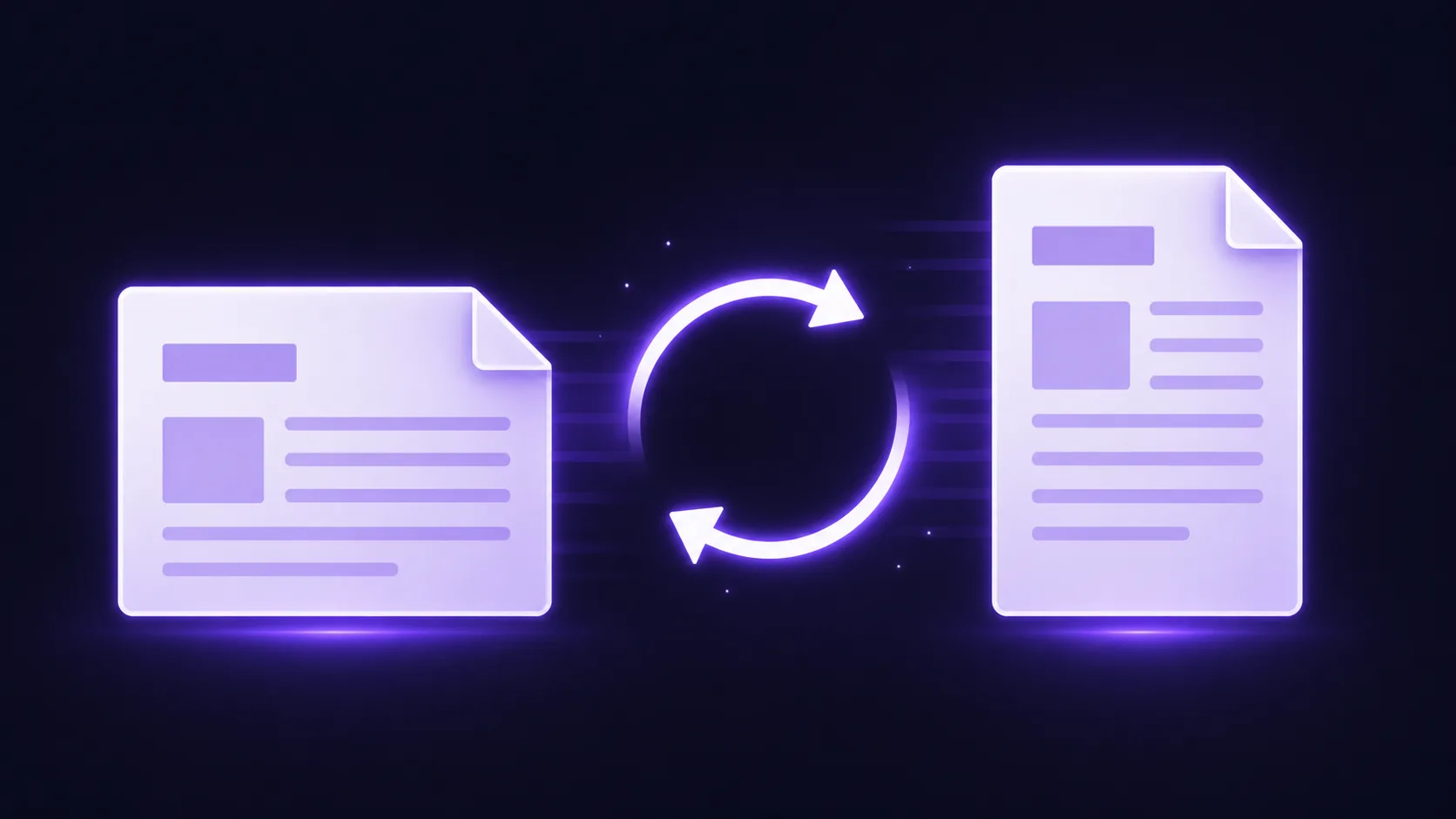
PDF compression reduces file size by optimizing these components — primarily the images, since they're almost always the largest contributor.
Low compression optimizes the internal structure of the PDF — removing redundant data, compressing streams, and subsetting fonts (storing only the characters used, not the entire font). Image quality stays virtually unchanged. This typically reduces file size by 10-30%.
Medium compression re-encodes images at a lower quality setting while keeping them visually acceptable. You'd have to zoom in and compare side-by-side to notice any difference on most documents. Reductions of 30-60% are common.
High compression aggressively reduces image resolution and quality. The difference may be noticeable on image-heavy documents or photos, but for scanned text documents, contracts, and standard business PDFs, the result is usually perfectly readable. Reductions of 50-80% are possible.
For emailing purposes, medium compression is the sweet spot for most documents. It gets you under the size limit without visible quality loss in normal viewing.
How to Compress a PDF for Email (Step by Step)
- Open the EdgeDocs Compress PDF tool — no software to install, works in any browser.
- Select your PDF file. The tool accepts files up to 25MB on the free tier.
- Choose a compression level. Start with Medium. If the result is still too large, try High.
- Check the results. EdgeDocs shows you the original file size, compressed file size, and exact percentage reduction — so you know immediately whether the file fits your email limit.
- Download the compressed PDF and attach it to your email.
The entire process takes seconds, not minutes. And because EdgeDocs runs in your browser, there's no upload step — your file is processed locally on your device and never sent to any server.
Why the "No Upload" Part Matters for Email Attachments
Think about what you typically email as PDF attachments: contracts with signatures, financial statements, medical forms, legal filings, HR documents, tax returns. These are some of the most sensitive documents you handle.
Most online PDF compressors require you to upload the file to their servers. That means your confidential document travels across the internet to a third-party service, gets processed on their infrastructure, and then travels back to you — all before you even attach it to the email.
Some services promise to delete your file after processing. But "deleted after one hour" still means your uncompressed document sat on someone else's server for up to an hour. For documents containing personal information, financial data, or privileged communications, that's an unnecessary risk.
EdgeDocs eliminates this entirely. Compression happens in your browser. The file never leaves your device. The only time your document travels over the internet is when you hit send on the email itself — going directly to your intended recipient.
What If Compression Isn't Enough?
Sometimes a PDF is so large that even high compression won't get it under 20-25MB. Here are your options:
Split the PDF. If the document has many pages, use a PDF splitter to break it into two or more smaller files and send them as separate attachments or in separate emails.
Remove unnecessary pages. If the PDF includes cover pages, blank pages, or appendices the recipient doesn't need, remove those pages before compressing.
Strip metadata. Hidden data like edit history, comments, and embedded fonts can add several megabytes. Run the file through a metadata stripper to remove everything except the visible content.
Check for embedded files. Some PDFs contain embedded attachments (other PDFs, spreadsheets, images). These add to the file size but aren't visible when you scroll through the pages.
In most cases, compression alone will do the job. For a standard business PDF — contracts, reports, forms, correspondence — medium compression typically gets a 30MB file under 15MB without any perceptible change in quality.
Quick Reference: Compression Level Guide
| Document Type | Recommended Level | Why |
|---|---|---|
| Scanned contracts and forms | Medium or High | Scanned pages are images — compression is very effective and text remains readable |
| Reports with charts and screenshots | Medium | Charts compress well; screenshots may soften slightly at High |
| Photo-heavy documents | Low or Medium | Photos are more sensitive to quality loss; start conservative |
| Text-only documents | Low | Already small; Low compression cleans up internal structure |
| Financial statements | Medium | Numbers and tables compress well with no readability loss |
The 30-Second Version
If you just need the quick answer: open EdgeDocs Compress PDF, drop in your file, choose Medium compression, check the output size, and download. Your file never leaves your device, and the compressed PDF is ready to attach to your email.
For documents containing sensitive information — which is most things people email as PDFs — this is the safest way to compress. No upload, no server, no risk.
EdgeDocs is a privacy-first PDF toolkit where all processing happens locally in your browser. Files never leave your device. Try any tool free.
Ready to try secure PDF processing?
20+ privacy-first tools that process files entirely in your browser. No uploads, no servers, no risk.
Try EdgeDocs Free