How to Rotate a PDF Permanently (Free, No Software)
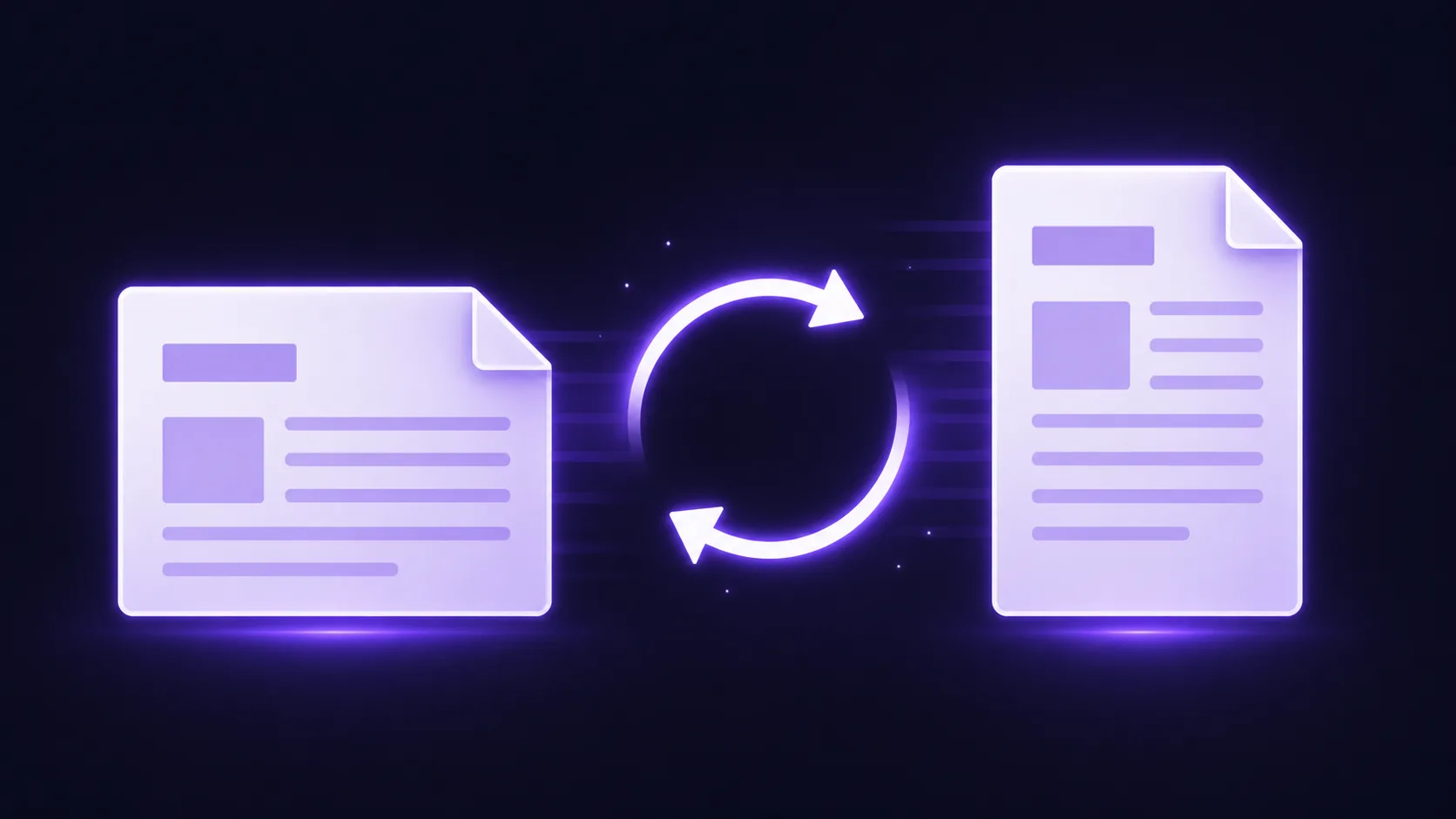
You open a PDF and half the pages are sideways. Or a scanned document came in upside down. Or a single page in the middle of a 20-page file is landscape when everything else is portrait.
This happens constantly with scanned documents, combined files from different sources, and PDFs exported from applications that don't match your screen orientation. The fix takes seconds — but most people don't know how to rotate a PDF permanently without installing Adobe Acrobat.
How to Rotate PDF Pages (Step by Step)
- Open the EdgeDocs Rotate PDF tool. Works in any browser, nothing to install.
- Select your PDF. The file loads locally — no upload to any server.
- Choose what to rotate. Select specific pages that need fixing, or rotate the entire document. Choose your rotation: 90° clockwise, 90° counter-clockwise, or 180° (flip upside down).
- Download the corrected PDF. The rotation is applied permanently. Your original file is untouched — you get a new, correctly oriented copy.
"Rotate" in a PDF Viewer vs. Permanent Rotation
There's an important difference most people don't realize.
When you rotate a page using your PDF viewer's built-in rotate button (the one in Chrome, Preview, or Adobe Reader), the rotation is temporary. It changes how the page displays on your screen, but it doesn't modify the file. The next person who opens the document sees the original orientation. If you email it, the recipient sees it sideways again.
Permanent rotation modifies the PDF file itself. The page orientation is baked into the document structure. Everyone who opens the file sees it correctly, on every device, in every viewer.
EdgeDocs applies permanent rotation — the downloaded file is genuinely corrected, not just displayed differently.
Common Reasons to Rotate
Scanned documents came in sideways. Scanner feeding issues, mixed-orientation originals, or automatic document feeders that misread page direction.
Combining files with mixed orientations. When you merge PDFs from different sources, some pages may be portrait while others are landscape. Rotate the mismatched pages before or after merging to create a consistent document.
Preparing for print. Some printers handle landscape pages differently. Rotating landscape pages to portrait (or vice versa) before printing ensures proper output.
Fixing phone-scanned documents. Documents photographed with a phone camera often end up rotated based on how you held the phone. Fix the orientation before converting to PDF or sharing.
After Rotating
- Compress if the file needs to be smaller for email or upload.
- Remove unnecessary pages if some pages shouldn't be in the final document.
- Strip metadata before sharing — the corrected document still carries the original file's metadata.
Why Rotate Locally?
A scanned document that needs rotation might contain anything — a signed contract, a medical form, a financial statement, identification documents. Most online rotation tools upload your entire file to their servers just to flip a page.
EdgeDocs rotates everything in your browser. Your document never leaves your device.
Rotate your PDF now — free, permanent, private.
EdgeDocs is a privacy-first PDF toolkit where all processing happens locally in your browser. Files never leave your device. Try any tool free.
Ready to try secure PDF processing?
20+ privacy-first tools that process files entirely in your browser. No uploads, no servers, no risk.
Try EdgeDocs Free