How to Compress a PDF to Under 1MB (Without Losing Readability)
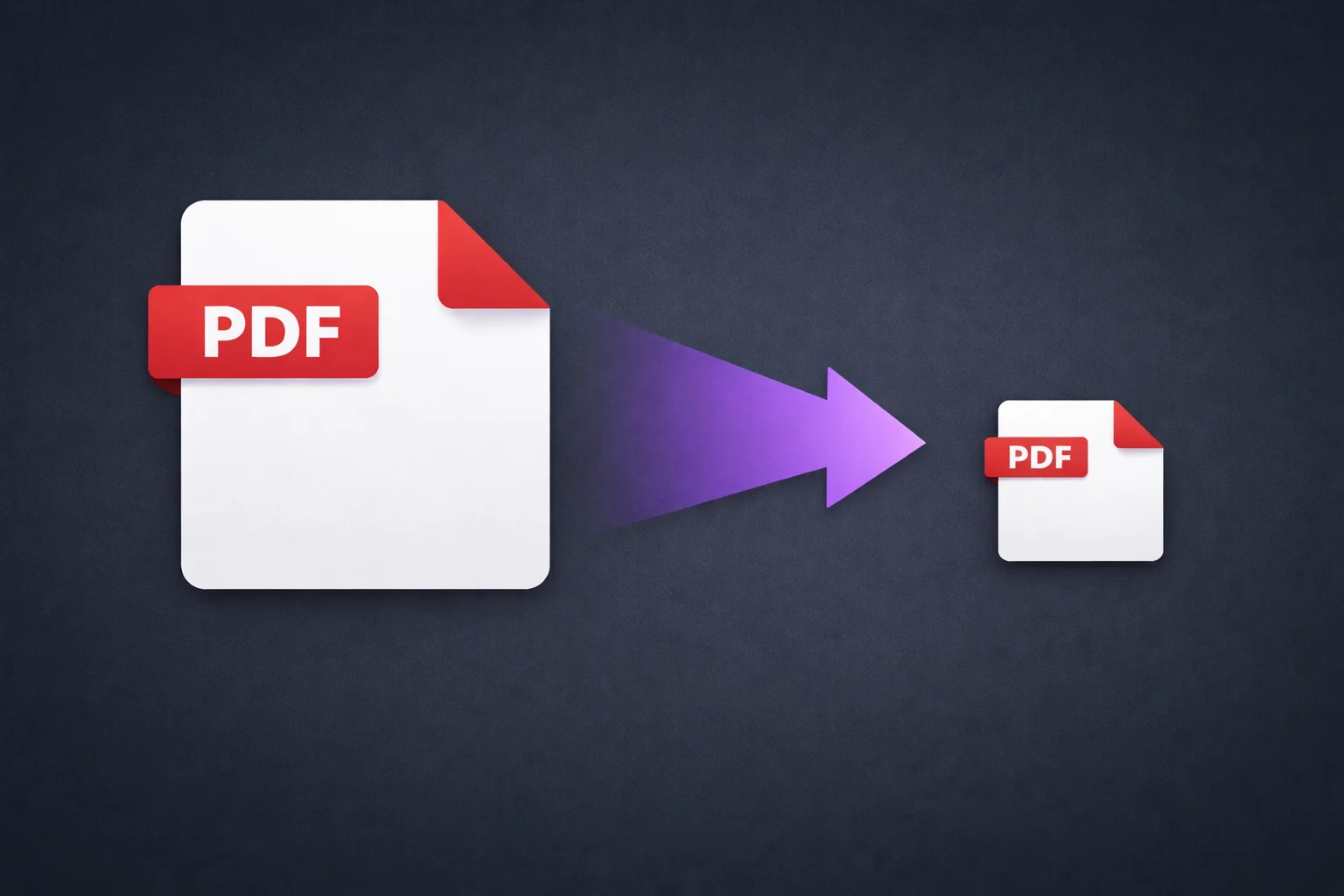
You're trying to upload a PDF to a government portal, a job application system, or an online form — and it's rejecting your file because it's over 1MB. Or 2MB. Or 5MB. The system doesn't care that your document is important. It just says "file too large."
This is one of the most common PDF frustrations. The file looks like a simple two-page form, but it's 12MB because it was scanned at high resolution or contains embedded images. Here's how to compress it down to size without making it unreadable.
Why Your PDF Is Larger Than You Think
A two-page text document should be 50-100KB. If yours is 5MB or more, it's almost certainly because of one of these:
Scanned pages. When you scan a document, each page becomes a high-resolution photograph. A single page scanned at 300 DPI can be 2-5MB. A 10-page scanned document is easily 20-40MB.
Embedded images. Charts, logos, photographs, screenshots — each one is stored at its original resolution inside the PDF, even if it displays at a fraction of that size on the page.
Duplicate resources. Some PDF generators embed the same font or image multiple times instead of referencing a single copy. This bloats the file without adding any visible content.
Edit history. PDFs created through multiple rounds of editing can accumulate orphaned objects — data from previous versions that's no longer displayed but still takes up space.
The Compression Strategy
Getting a PDF under 1MB depends on what's making it large. Here's the approach:
Step 1: Try Medium compression first.
Open the EdgeDocs Compress PDF tool, select your file, and choose Medium compression. Check the result — EdgeDocs shows you the original size, compressed size, and percentage reduction. If it's under your target, you're done.
Medium compression typically reduces files by 30-60% with no visible quality loss on text documents. A 3MB scanned form usually drops to 1-1.5MB.
Step 2: If still too large, try High compression.
High compression reduces image quality more aggressively. For text-heavy documents (contracts, forms, applications), the text remains perfectly readable even at high compression because the algorithm prioritizes text clarity over photographic detail.
High compression typically achieves 50-80% reduction. A 5MB file often drops below 1MB.
Step 3: For stubborn files, strip metadata first.
Before compressing, run the file through Strip Metadata. This removes hidden data — author information, edit history, embedded comments, font subsets — that adds size without adding visible content. Then compress the cleaned file.
Step 4: For very large scanned documents, consider the page count.
If your file is a 20-page scan at 15MB and you only need to submit specific pages, use Remove Pages to extract just the pages you need, then compress. Fewer pages means a smaller file.
What to Expect at Each Compression Level
| Original Size | Low | Medium | High |
|---|---|---|---|
| 2MB (scanned form) | ~1.5MB | ~1MB | ~0.6MB |
| 5MB (report with images) | ~3.5MB | ~2MB | ~1.2MB |
| 10MB (multi-page scan) | ~7MB | ~4MB | ~2.5MB |
| 20MB (exhibit package) | ~14MB | ~8MB | ~5MB |
These are approximate — actual results depend on the content. Image-heavy documents compress more than text-heavy ones because there's more data to optimize.
When 1MB Is Genuinely Difficult
Some files resist compression because there's simply a lot of visual data. A 50-page scanned document with photographs on every page may not compress below 2-3MB without severe quality loss.
In these cases:
Split the document. Use Split PDF to break it into sections that each fit under the limit. Upload them separately or as a multi-part submission.
Reduce scan resolution. If you control the scanning process, scan at 150 DPI instead of 300 DPI. This halves the data per page with minimal readability impact for text documents.
Convert to text-based PDF. If the document is a scan of a typed page, PDF OCR can create a text-layer PDF that's dramatically smaller than the image-based original.
Common Upload Size Limits
| Platform | Typical Limit |
|---|---|
| Gmail attachment | 25MB |
| Outlook attachment | 20MB |
| Most government portals | 1-5MB |
| Job application systems | 2-10MB |
| Court e-filing (CM/ECF) | 35MB per document |
| Insurance claim uploads | 5-10MB |
| University submission portals | 2-5MB |
Government portals and job applications are the strictest. If you're regularly submitting to these systems, compressing before upload should be part of your standard workflow.
The Privacy Note
Your PDF probably contains exactly the kind of information you wouldn't want on a random server — your resume with personal details, a tax form with your SSN, a medical record, a signed contract.
EdgeDocs compresses everything locally in your browser. The file never leaves your device. There's no upload, no server processing, and no risk of your document sitting on someone else's infrastructure while you wait for it to come back.
Compress your PDF now — free, instant, private.
EdgeDocs is a privacy-first PDF toolkit where all processing happens locally in your browser. Files never leave your device. Try any tool free.
Ready to try secure PDF processing?
20+ privacy-first tools that process files entirely in your browser. No uploads, no servers, no risk.
Try EdgeDocs Free