How to Convert Images to PDF (Combine Multiple Photos Into One File)
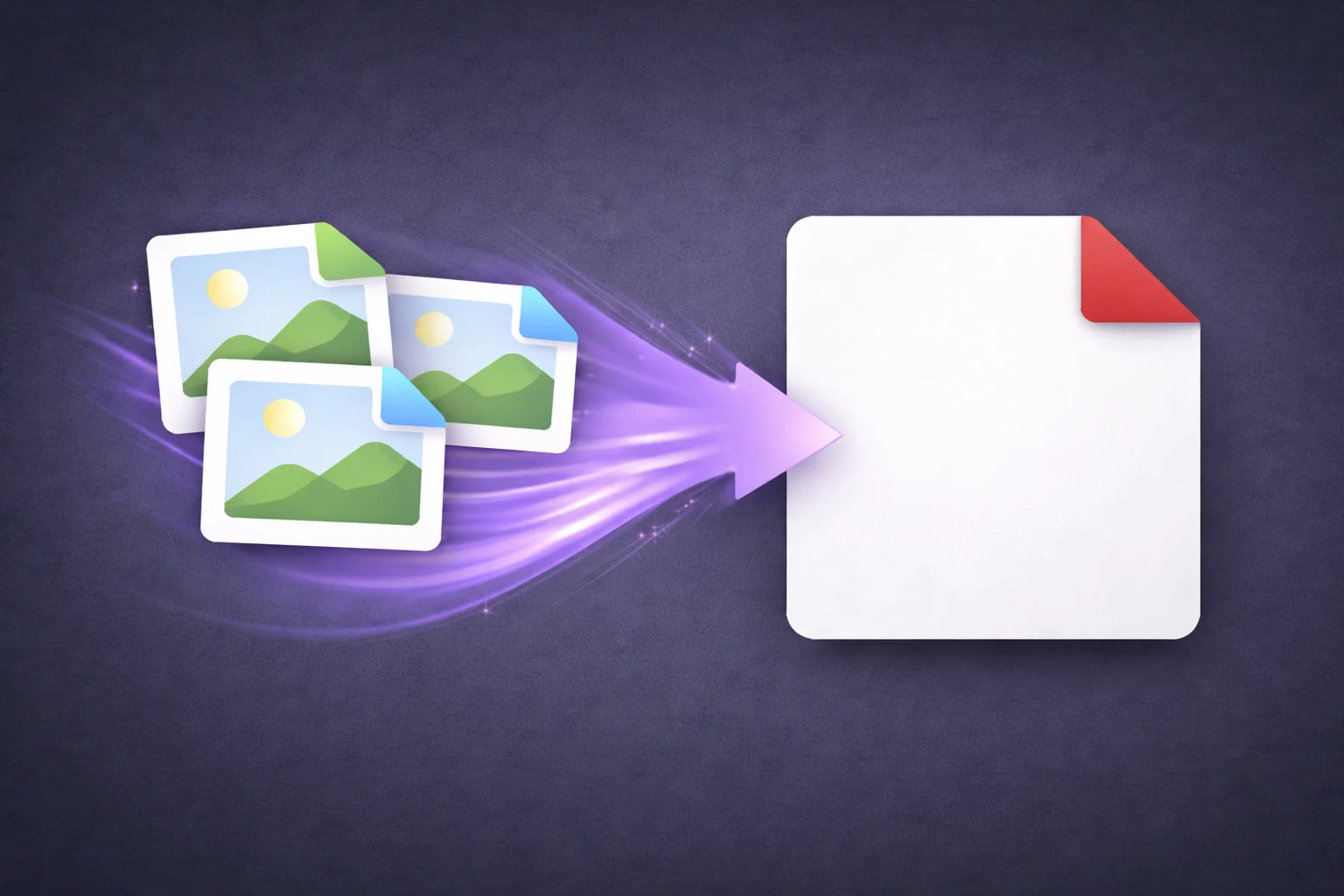
You have a stack of photos, scanned pages, or screenshots that need to become a single PDF. Maybe it's receipts for an expense report, photos of a signed contract, identification documents for a verification form, or images from a project that need to be in one shareable file.
The task is straightforward: arrange images in order, combine them into pages of a PDF, and download. Most online tools handle this, but they upload every image to their servers first. For personal photos that's probably fine. For scanned IDs, financial documents, medical records, or signed contracts captured as photos, that's your sensitive data on someone else's infrastructure.
Here's how to do it without the upload.
How to Convert Images to PDF (Step by Step)
Open the EdgeDocs Images to PDF tool. Works in any browser, nothing to install.
Add your images. Select or drag in your JPG, PNG, or other image files. They load locally into your browser — no upload.
Arrange the order. Drag images into the sequence you want them to appear as pages in the PDF. First image becomes page 1, and so on.
Convert and download. Each image becomes a full page in the PDF. The file is created locally and saved to your device.
The conversion is instant because there's no upload or server processing — your browser handles everything.
Common Use Cases
Expense reports. Photograph or screenshot receipts from your phone, transfer the images to your computer, and combine them into a single PDF for submission. Many expense systems and accountants prefer one consolidated PDF over a folder of loose images.
Document scanning without a scanner. Take photos of paper documents with your phone camera — contracts, forms, letters, handwritten notes — and convert them into a clean PDF. This is often faster and more accessible than using a flatbed scanner.
ID and verification submissions. Many applications require scanned copies of identification documents — passport, driver's license, utility bills. Photograph them, convert to PDF, and submit. Some portals specifically require PDF format rather than raw images.
Photo portfolios and lookbooks. Photographers, designers, and creatives can compile selected images into a single PDF for client presentations, portfolio reviews, or print preparation.
Real estate and insurance documentation. Property photos, damage documentation, inspection images, and site photos often need to be compiled into a single file for claims, reports, or listings.
Student assignments and projects. Handwritten work, lab photos, diagrams, and sketches can be combined into one PDF for submission through academic portals that require PDF format.
Tips for Better Results
Use consistent image sizes. If your images are different dimensions, each page in the PDF will be different sizes. For a professional-looking PDF, crop or resize images to consistent dimensions before converting.
Higher resolution is better. Low-resolution images (under 1MP) will look blurry when viewed at full page size in the PDF. Photos from a modern smartphone (12MP+) produce excellent results.
JPG vs PNG. Both work. JPG files are smaller (faster to process), PNG files preserve more detail. For photographs, JPG is fine. For screenshots with text, PNG preserves sharper edges.
Compress after converting if needed. A PDF made from high-resolution photos can be large. Run the result through Compress PDF to reduce the file size for email or upload.
Make it searchable. A PDF created from images is just a collection of pictures — the text in those images isn't searchable or selectable. If you need the text to be searchable (for a scanned document, not a photo), run the PDF through PDF OCR after converting to add a text layer.
Why Convert Locally?
The images you're combining often contain sensitive content — scanned IDs, financial receipts, signed contracts, medical documents, personal photos. Uploading these to an online converter means every image passes through a third-party server.
EdgeDocs converts everything in your browser. Your images are read locally, the PDF is assembled locally, and the output is saved locally. No server sees your photos at any point.
Convert your images to PDF now — free, instant, private.
EdgeDocs is a privacy-first PDF toolkit where all processing happens locally in your browser. Files never leave your device. Try any tool free.
Ready to try secure PDF processing?
20+ privacy-first tools that process files entirely in your browser. No uploads, no servers, no risk.
Try EdgeDocs Free