How to Convert PDF to JPG for Free (No Upload, High Quality)
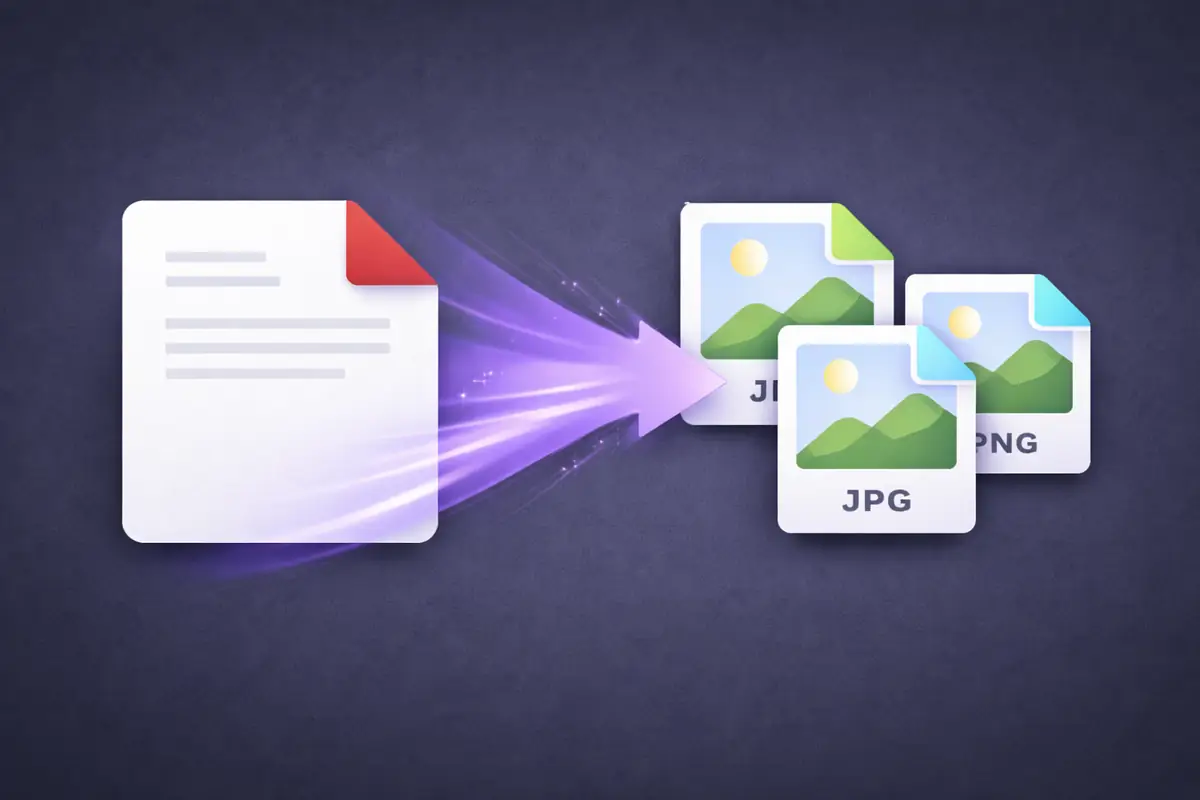
You need a PDF page as an image — to paste into a presentation, post on social media, embed in a website, or send to someone who doesn't have a PDF viewer. The PDF itself is fine, but you need a JPG or PNG version of one or more pages.
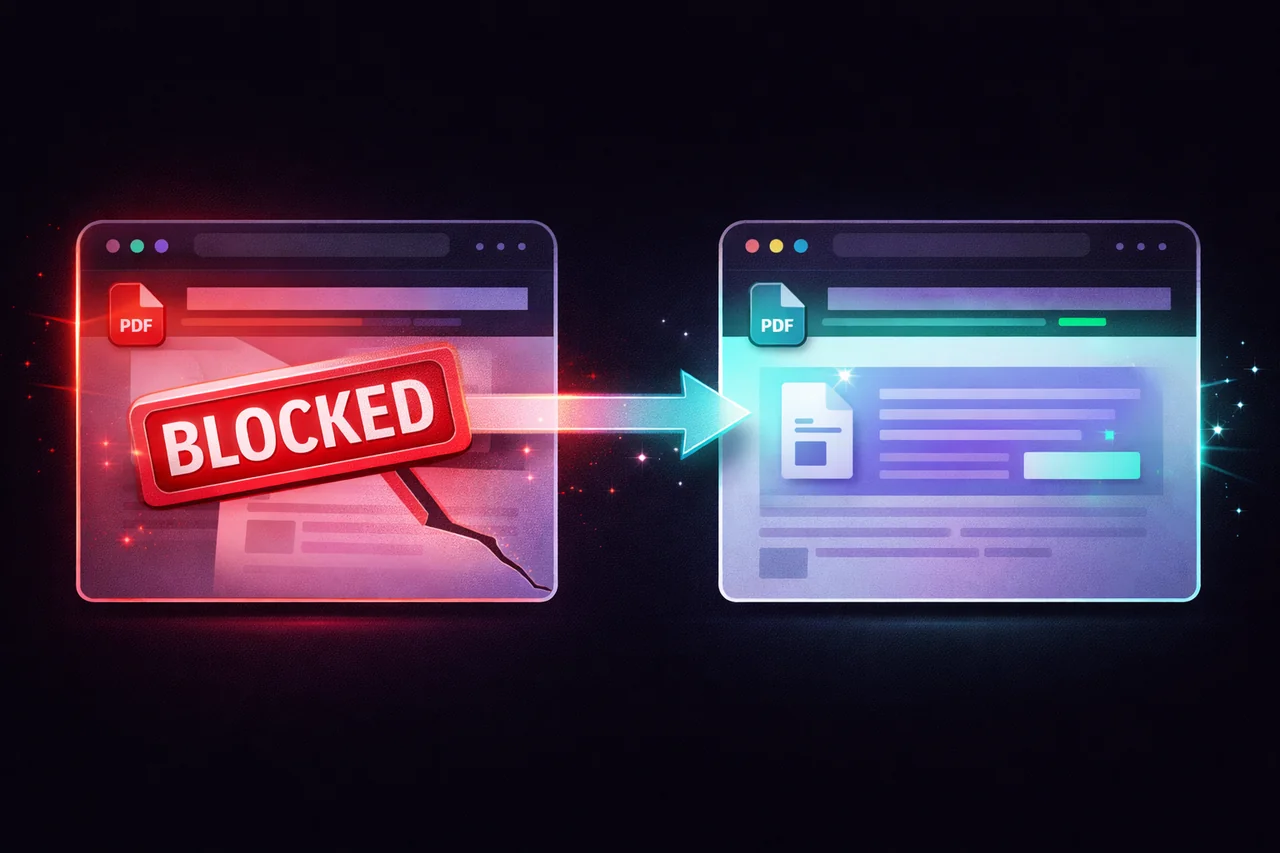
Most online converters upload your PDF to their servers, convert it, and send the images back. For a public flyer that's fine. For a document with confidential content — a contract page, a financial chart, a medical form — you probably don't want it sitting on a random conversion server.
Here's how to do it locally in seconds.
How to Convert PDF to Images (Step by Step)
-
Open the EdgeDocs PDF to Images tool. No software to install, works in any browser.
-
Select your PDF. The file loads locally — no upload.
-
Choose your output format. PNG for maximum quality (lossless), JPG for smaller file sizes.
-
Convert and download. Each page becomes a separate image file. Download them individually or as a batch.
The conversion happens entirely in your browser using the Canvas API to render each page at high resolution. Your PDF never leaves your device.
Common Use Cases
Extracting a chart or table for a presentation. You need one page from a report as an image to paste into PowerPoint or Google Slides. Convert just that page to PNG and insert it — cleaner than a screenshot and higher resolution.
Sharing a document page on social media or messaging. Not everyone can open a PDF. Converting a page to JPG makes it instantly viewable in any chat app, social media platform, or email without attachments.
Embedding PDF content in a website or blog. Web pages display images natively but not PDFs. Converting key pages to images lets you embed them directly in articles, portfolios, or product pages.
Creating thumbnails or previews. Generate preview images of document first pages for a file management system, a client portal, or a document listing interface.
Archiving individual pages. Sometimes you need specific pages saved as standalone image files — for records, evidence, or reference.
Quality Settings
PNG produces lossless images — no compression artifacts, perfect reproduction of text and graphics. File sizes are larger but the quality is identical to the original PDF rendering. Use PNG when text clarity matters (contracts, forms, documents with fine print).
JPG produces smaller files with slight compression. Perfectly fine for photos, charts, and graphics. Text may show slight artifacts at low quality settings but is usually readable. Use JPG when file size matters more than pixel-perfect text reproduction.
For most use cases, PNG is the safer choice. The file size difference is usually a few hundred KB per page — negligible for modern devices and networks.
Why Convert Locally?
A PDF you're converting to images might contain anything — confidential figures, personal information, proprietary designs, unpublished content. Most online converters process your file on their servers, meaning the full document content passes through third-party infrastructure.
EdgeDocs converts entirely in your browser. The PDF is rendered to a canvas element locally, the canvas is exported as an image file, and the image is saved to your device. No server is involved at any point.
Convert your PDF to images now — free, instant, private.
EdgeDocs is a privacy-first PDF toolkit where all processing happens locally in your browser. Files never leave your device. Try any tool free.
Ready to try secure PDF processing?
20+ privacy-first tools that process files entirely in your browser. No uploads, no servers, no risk.
Try EdgeDocs Free