How to Merge PDF Files for Free (No Upload Required)
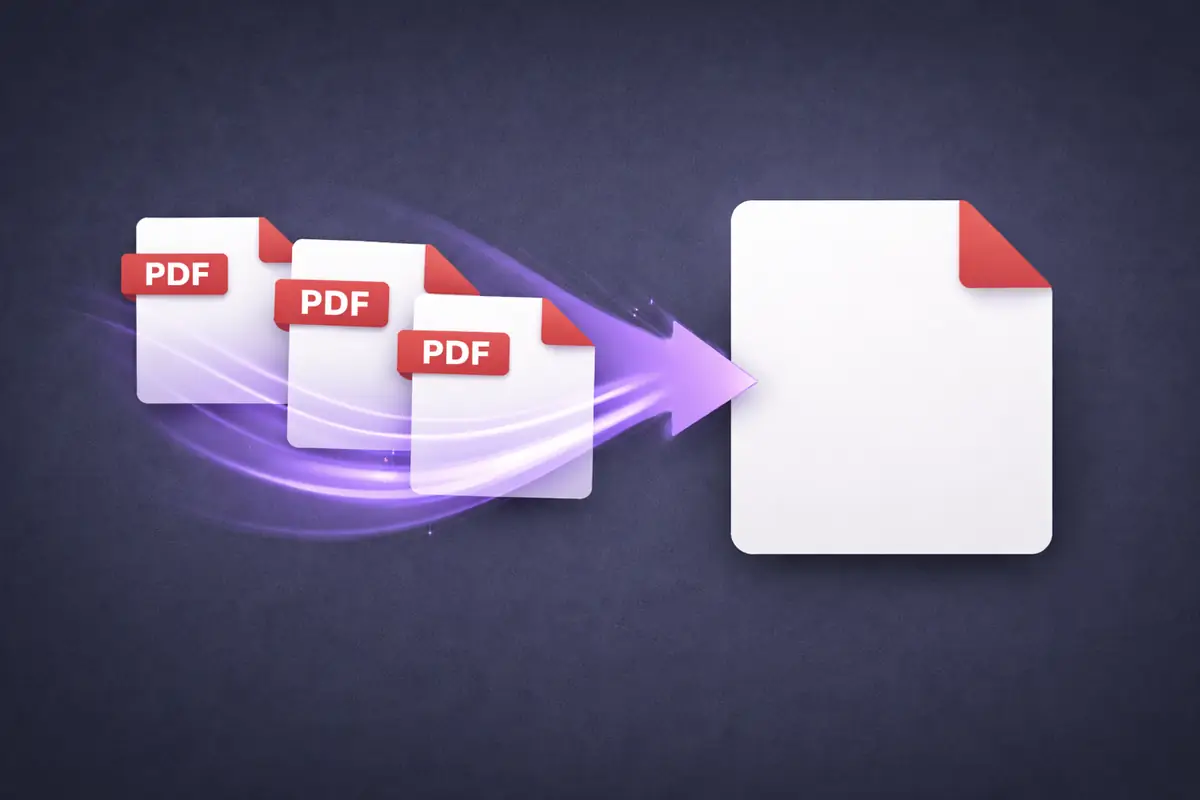
You have three PDFs that need to be one file. Maybe it's a report split across sections, a set of signed forms, or monthly statements that an auditor wants in a single document. The task is simple: combine them, in order, into one PDF.
Most online merge tools make you upload every file to their servers, wait for processing, and then download the result. For a restaurant menu that's fine. For a signed contract, a financial report, or a set of HR documents, sending them through someone else's infrastructure adds unnecessary risk.
Here's how to merge PDFs without any of that.
How to Merge PDFs (Step by Step)
-
Open the EdgeDocs Merge PDF tool. Works in any browser. Nothing to install.
-
Add your PDF files. Select all the documents you want to combine. They load into your browser's local memory — no upload to any server.
-
Arrange the order. Drag files into the sequence you want them in the final document. First file becomes the first pages, second file follows, and so on.
-
Merge and download. The combined PDF is created locally on your device. One file, correct order, ready to use.
The whole process takes seconds. For three average-sized PDFs, it's nearly instant because there's no upload or download from a server — everything happens on your machine's processor.
When You Need to Merge PDFs
Sending multiple documents as one email attachment. Instead of attaching five separate files and hoping the recipient opens them in the right order, merge them into a single PDF. Cleaner, more professional, and no files get lost.
Preparing audit or compliance packages. Auditors and regulators typically want consolidated documentation — financial statements, contracts, and supporting evidence in one organized file. Merge your documents, then add a table of contents or page numbers if needed.
Combining signed pages into a complete contract. When a contract has signature pages that were signed and scanned separately, merge them back into the full document so the final file is complete and self-contained.
Creating a single portfolio or application. Job applications, grant submissions, and proposal packages often require a single PDF combining your resume, cover letter, writing samples, and supporting documents.
Consolidating monthly reports. Quarterly or annual reports built from monthly PDFs need to be merged in chronological order. This is especially common in accounting, HR, and compliance workflows.
Tips for Clean Merges
Check page orientation before merging. If one document is landscape and the rest are portrait, the merged file will have mixed orientations. Use Rotate PDF to align them first if needed.
Remove unnecessary pages first. Don't merge a 50-page document when only 3 pages are relevant. Use Remove Pages to extract what you need, then merge the trimmed versions.
Compress after merging. A merged file can be large, especially if you're combining scanned documents. Run the result through Compress PDF to reduce the size for email or upload.
Strip metadata from the final file. Each source PDF carries its own metadata — author names, creation dates, software used. The merged file inherits all of it. Use Strip Metadata to clean the final document before sharing.
Why Merge Locally?
The documents you merge are often a collection of sensitive files — bank statements, contracts, medical records, identification documents. Uploading all of them to a merge service means every file passes through third-party infrastructure.
EdgeDocs merges everything in your browser. Your files never leave your device. There's no server, no upload, no temporary storage of your documents on anyone else's system.
Merge your PDFs now — free, instant, private.
EdgeDocs is a privacy-first PDF toolkit where all processing happens locally in your browser. Files never leave your device. Try any tool free.
Ready to try secure PDF processing?
20+ privacy-first tools that process files entirely in your browser. No uploads, no servers, no risk.
Try EdgeDocs Free