How to Remove Pages from a PDF Without Adobe (Free, Private)
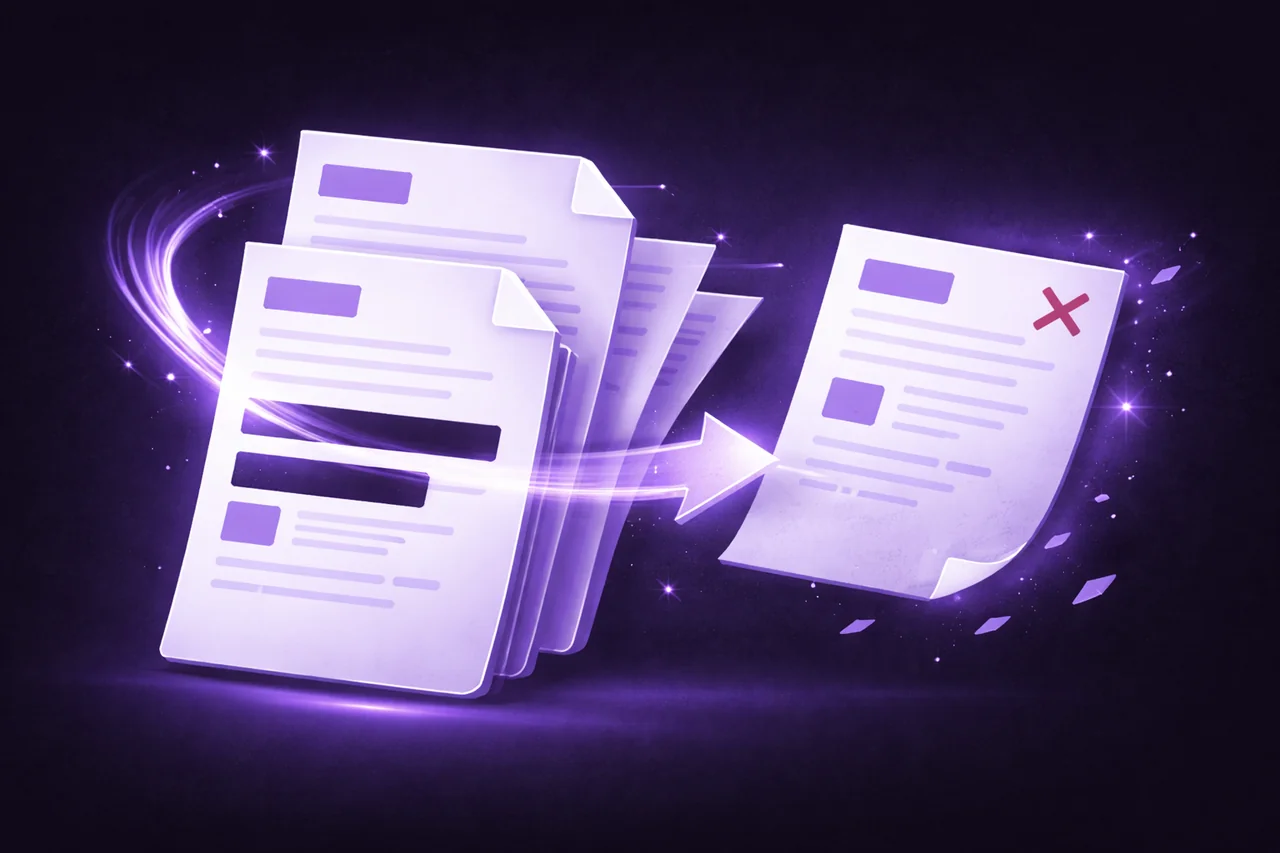
You have a PDF with pages that shouldn't be there — a blank page at the end, a duplicate cover sheet, an appendix that isn't relevant to the recipient, or a section containing information the recipient shouldn't see.
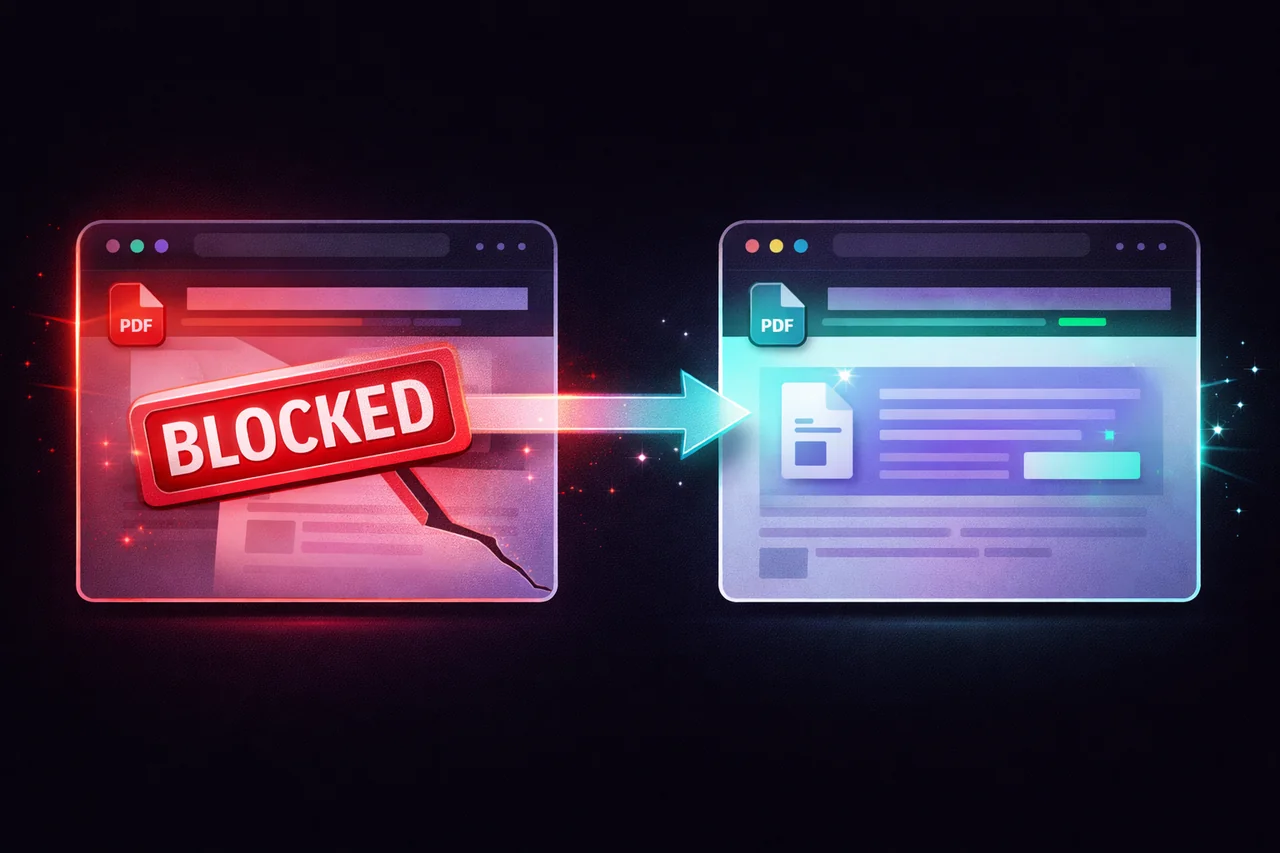
Adobe Acrobat Pro can delete pages, but it costs $20/month. Most free online alternatives upload your entire document to their servers — including the pages you're trying to remove.
Here's how to remove pages from any PDF, for free, without uploading the file.
How to Remove Pages from a PDF (Step by Step)
-
Open the EdgeDocs Remove Pages tool. Works in any browser, no software to install.
-
Select your PDF. The file loads locally in your browser — no upload to any server.
-
Choose which pages to delete. Select individual pages, multiple pages, or a range. You can preview each page before deciding.
-
Download the new PDF. The result is a new file with the selected pages removed. Your original file is untouched.
The entire process takes seconds and happens on your device.
Common Reasons to Remove Pages
Blank pages. Scanned documents and exported reports frequently include blank pages at the end or between sections. These add unnecessary file size and look unprofessional.
Duplicate cover sheets. When merging documents from different sources, you often end up with multiple cover pages or title pages. Remove the duplicates to create a clean combined file.
Irrelevant appendices. A 50-page report might have appendices that aren't relevant to a specific recipient. Remove them rather than sending unnecessary information.
Sensitive sections. Instead of redacting an entire section page by page, sometimes it's simpler to remove the pages entirely. The recipient never sees the content because the pages don't exist in their copy.
Print optimization. If you're printing a document and certain pages don't need to be printed (cover pages, blank backs, reference sections), remove them first to save paper and ink.
Remove Pages vs. Split PDF: Which One?
These tools do opposite things:
Remove Pages deletes pages FROM a document. You get the full document minus the pages you selected. Use this when you want most of the document but need to remove a few pages.
Split PDF extracts pages OUT of a document. You get only the pages you selected. Use this when you want a small subset of pages from a larger document.
| I want... | Use... |
|---|---|
| A 30-page doc without pages 5 and 6 | Remove Pages |
| Only pages 5 and 6 from a 30-page doc | Split PDF |
| The first 10 pages only | Split PDF |
| Everything except the last 3 pages | Remove Pages |
After Removing Pages
- Compress the result if you need to reduce file size further.
- Add page numbers if the remaining pages need sequential numbering that reflects the new page count.
- Strip metadata before sharing — the reduced document still carries the original file's metadata.
- Flatten if you want to ensure the recipient can't modify anything in the remaining pages.
Why Remove Pages Locally?
The full document — including every page, including the pages you want to remove — has to be loaded for processing. When you use an online tool, the entire unedited document gets uploaded to their servers. The pages you're removing are often the ones containing the most sensitive content — that's why you're removing them.
EdgeDocs processes everything in your browser. The full document loads locally, the pages are removed locally, and the new file is saved locally. The pages you deleted never left your device.
Remove pages now — free, instant, private.
EdgeDocs is a privacy-first PDF toolkit where all processing happens locally in your browser. Files never leave your device. Try any tool free.
Ready to try secure PDF processing?
20+ privacy-first tools that process files entirely in your browser. No uploads, no servers, no risk.
Try EdgeDocs Free