How to Split a PDF Into Separate Pages (Free, No Upload)
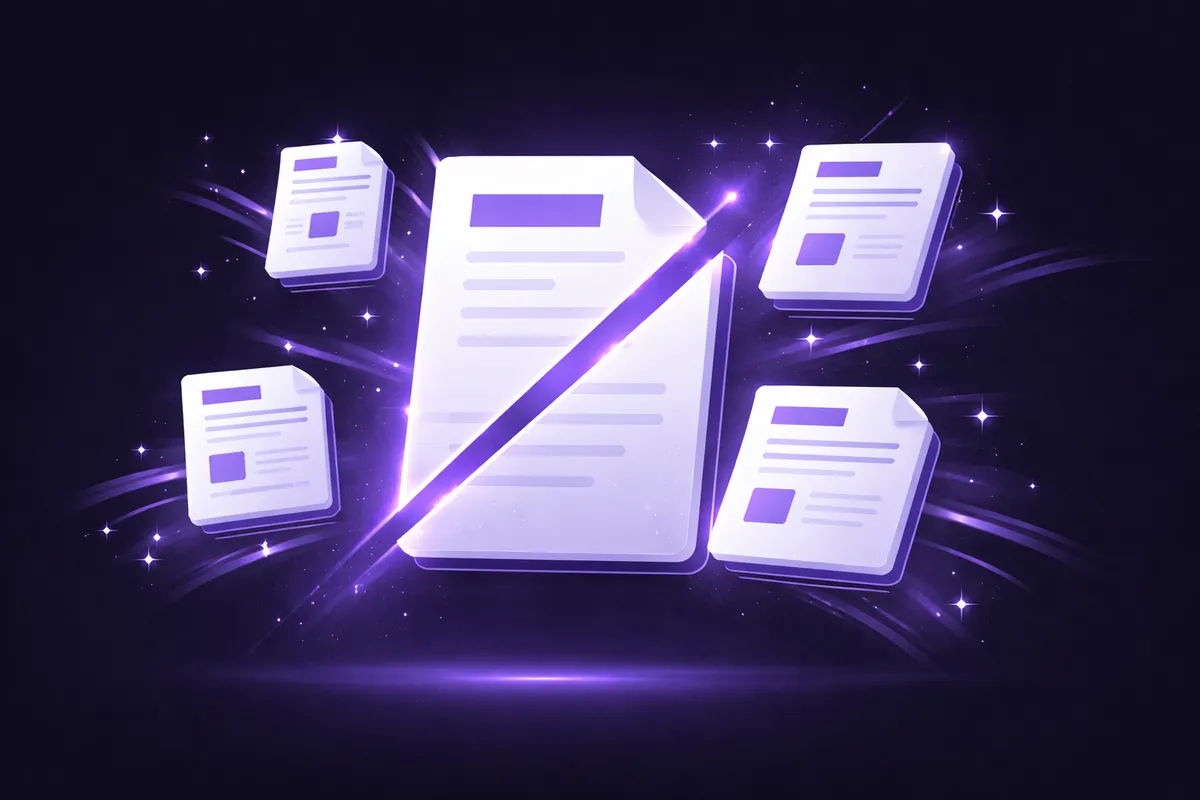
You have a 30-page PDF but you only need pages 5 through 8. Or you need to break a single document into separate files — one per chapter, one per section, or one per recipient. Or a court filing system is rejecting your file because it's too large, and you need to split it into volumes.
Splitting a PDF should be a 10-second task. Most online tools make it one, but they require you to upload the entire document to their servers first — which means every page, including the ones you don't need, passes through third-party infrastructure.
Here's how to split a PDF locally, in your browser, without the upload.
How to Split a PDF (Step by Step)
Open the EdgeDocs Split PDF tool. No software to install, works in any browser.
Select your PDF. The file loads locally in your browser — no upload to any server.
Choose what to extract. Select specific pages, a page range, or split into individual single-page files.
Download. Your extracted pages are saved as a new PDF file (or multiple files). The original document is untouched.
The entire process happens on your device. Your 30-page document never leaves your browser, even though you only needed 4 pages from it.
Common Reasons to Split a PDF
Extracting relevant pages from a long document. You received a 100-page report but only need the executive summary (pages 1-3) or a specific appendix. Extract just those pages instead of forwarding the entire file.
Meeting file size limits. Court e-filing systems, government portals, email providers, and online forms all have size limits. If your PDF exceeds the limit, split it into parts that each fit. Most systems accept multi-part submissions labeled "Part 1 of 3," etc.
Separating a combined document into individual files. A single PDF might contain multiple contracts, multiple invoices, or multiple forms that need to be filed or distributed separately. Split each into its own file.
Removing sensitive sections before sharing. Instead of redacting an entire section, sometimes it's simpler to split the document and only share the pages that are appropriate for the recipient. The excluded pages never leave your control.
Breaking a document into chapters or sections. Long manuals, training materials, and ebooks are sometimes easier to distribute as separate section files rather than one massive PDF.
Split vs. Remove Pages: What's the Difference?
Both tools let you work with specific pages, but they do different things:
Split PDF extracts pages OUT of a document, creating a new file containing only the pages you selected. The original stays intact. Use this when you need a subset of pages as a standalone document.
Remove Pages deletes pages FROM a document, creating a new version with those pages gone. Use this when you need the full document minus a few pages (like blank pages, duplicate cover sheets, or irrelevant appendices).
In practice: if you want pages 5-8 from a 30-page document, split extracts 5-8 into a new 4-page file. If you want the 30-page document without pages 5-8, remove creates a new 26-page file.
After Splitting
Depending on what you're doing with the extracted pages, you might want to:
Compress the split file if it's still too large for your upload limit or email attachment.
Merge split sections from different documents into a new combined file — for example, extracting chapter 3 from one document and appendix B from another, then merging them into a single reference file.
Strip metadata from the split file before sharing. The extracted pages inherit the original document's metadata (author, creation date, software), which you may not want the recipient to see.
Add a watermark to the extracted pages if they're being distributed externally and need a "Confidential" or "Draft" label.
Why Split Locally?
You're splitting a document because it contains pages you want to separate — and often, the reason you're separating them is because some pages are sensitive and others aren't. Uploading the entire unsplit document to a server means every page, including the sensitive ones you're trying to isolate, passes through third-party infrastructure.
EdgeDocs splits everything in your browser. The full document loads locally, the extraction happens locally, and the output is saved locally. The pages you didn't extract never went anywhere — they stayed in your browser's memory and were discarded when you closed the tab.
Split your PDF now — free, instant, private.
EdgeDocs is a privacy-first PDF toolkit where all processing happens locally in your browser. Files never leave your device. Try any tool free.
Ready to try secure PDF processing?
20+ privacy-first tools that process files entirely in your browser. No uploads, no servers, no risk.
Try EdgeDocs Free