What's New at EdgeDocs: 6 Tools We Just Shipped
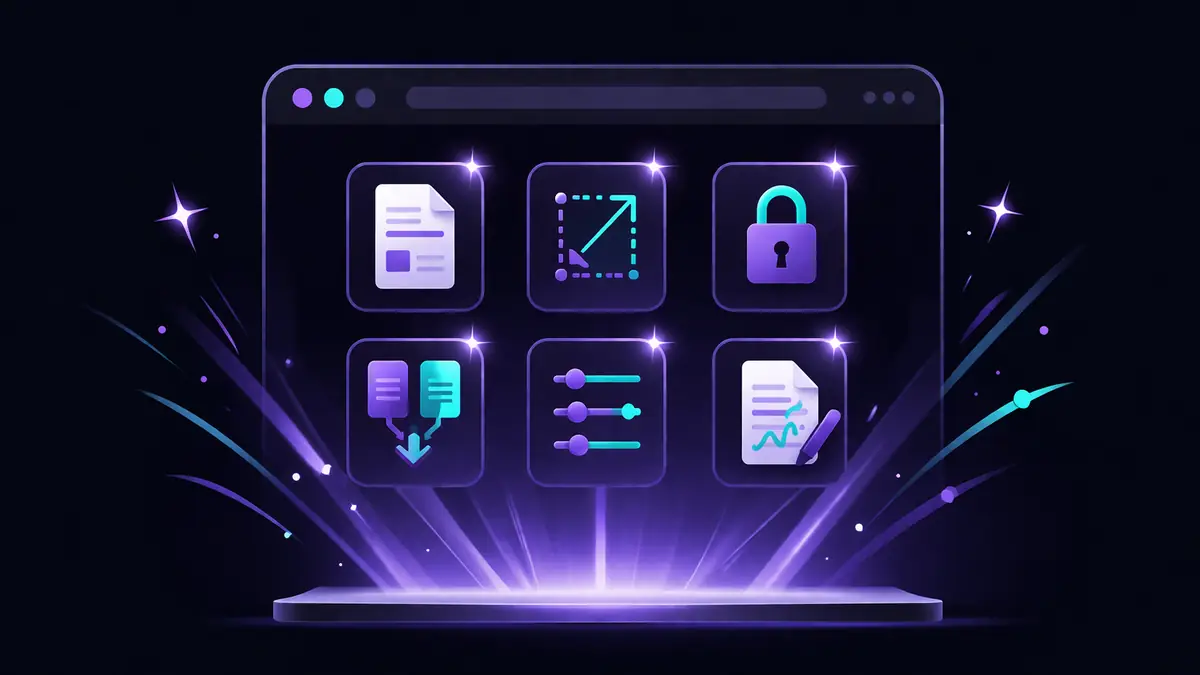
We've been shipping fast. Over the past few weeks, EdgeDocs grew from a focused PDF security toolkit to a full 21-tool suite — and every new tool runs entirely in your browser, just like the originals.
Here's what's new and what each tool does.
PDF OCR — Make Scanned Documents Searchable
If you've ever received a scanned contract, a photographed receipt, or a PDF that was clearly printed and re-scanned, you know the problem: the text isn't selectable. You can't search for a name, copy a paragraph, or find a specific clause.
PDF OCR uses Tesseract.js to perform optical character recognition directly in your browser. It reads the scanned images, recognizes the text, and creates a new PDF with an invisible text layer behind each page — making the document searchable, selectable, and copyable while preserving the original appearance.
The processing happens entirely on your device. Your scanned documents never leave your browser — which matters when those scans contain signatures, financial figures, or personal information.
Sign PDF — Add Your Signature Privately
Most e-signature tools require you to upload your document to their servers, create an account, and sometimes even email the document through their platform. For a quick internal signature — signing an expense form, an acknowledgment, or a simple agreement — that's a lot of overhead.
Sign PDF lets you draw, type, or upload your signature, then drag it to the exact position on any page of your PDF. Navigate between pages to find the right spot, resize the signature to fit, and download the signed document. No account needed to try it, no file upload, no third-party involvement.
Edit PDF — Draw, Annotate, and Add Content
Sometimes you need to add a note, circle a section, insert a text box, or place an image on a PDF — without converting it to Word and back.
Edit PDF provides drawing tools, text insertion, image placement, and page reordering. It's not a full word processor replacement — it's the quick-edit tool for when you need to mark up a document before sharing or add content that wasn't in the original.
Compare PDF — Spot Differences Between Versions
When a contract comes back with "minor revisions" or a report has been "slightly updated," you need to know exactly what changed. Reading both versions side by side is tedious and error-prone.
Compare PDF highlights visual differences between two PDF files, making it immediately clear what was added, removed, or moved. Useful for contract negotiations, document review cycles, and verifying that a "final" version actually matches what you approved.
Auto-Redact PII — Find Sensitive Data Automatically
Manual redaction works when you know exactly where the sensitive information is. But in a 30-page document with scattered phone numbers, email addresses, Social Security numbers, and credit card numbers, finding every instance by hand is risky.
Auto-Redact PII scans your document for common PII patterns and flags them for review. You confirm what gets redacted, and the tool permanently removes it. The detection runs locally — your document's personal data is analyzed on your device, not on a server.
Sanitize for LLMs — Clean Documents Before AI Input
If you're using ChatGPT, Claude, or other AI tools for document analysis, the text you paste or upload becomes part of that AI's processing pipeline. Any personal information, confidential terms, or proprietary data in the document gets sent to the AI provider's servers.
Sanitize for LLMs strips a PDF of sensitive content before you use it as AI input — removing metadata, personal identifiers, and flagged confidential sections so you can get AI assistance without exposing protected information.
The Common Thread
All six tools follow the same architectural principle as every other EdgeDocs tool: your files never leave your device. OCR processing, signature embedding, visual comparison, PII detection, and text sanitization all happen locally in your browser.
No uploads. No servers. No exceptions.
Try any tool free — 21 privacy-first PDF tools, all running locally.
EdgeDocs is a privacy-first PDF toolkit where all processing happens locally in your browser. Files never leave your device.
Ready to try secure PDF processing?
20+ privacy-first tools that process files entirely in your browser. No uploads, no servers, no risk.
Try EdgeDocs Free