How to Flatten a PDF (And Why It Matters)
You've redacted a contract, watermarked a report, or filled out a signed form. You save the PDF and send it off. Then someone on the other end opens it in a PDF editor, lifts the watermark layer off, un-does the form entries, or extracts the text you thought you redacted.
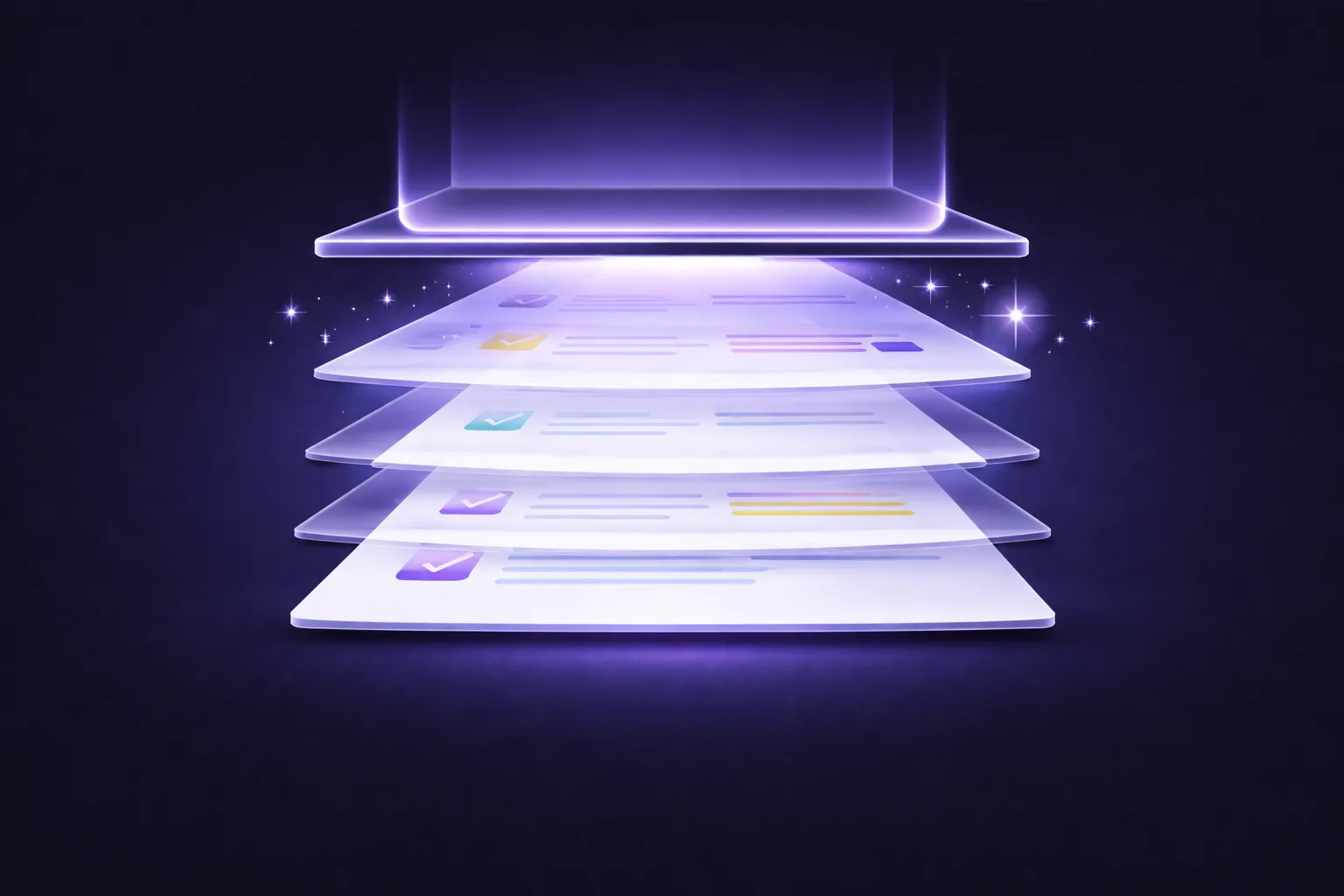
This happens because PDFs are layered documents. Every annotation, watermark, form field, and comment exists as a separate editable layer on top of the base content. Unless you flatten the file, those layers remain interactive and removable.
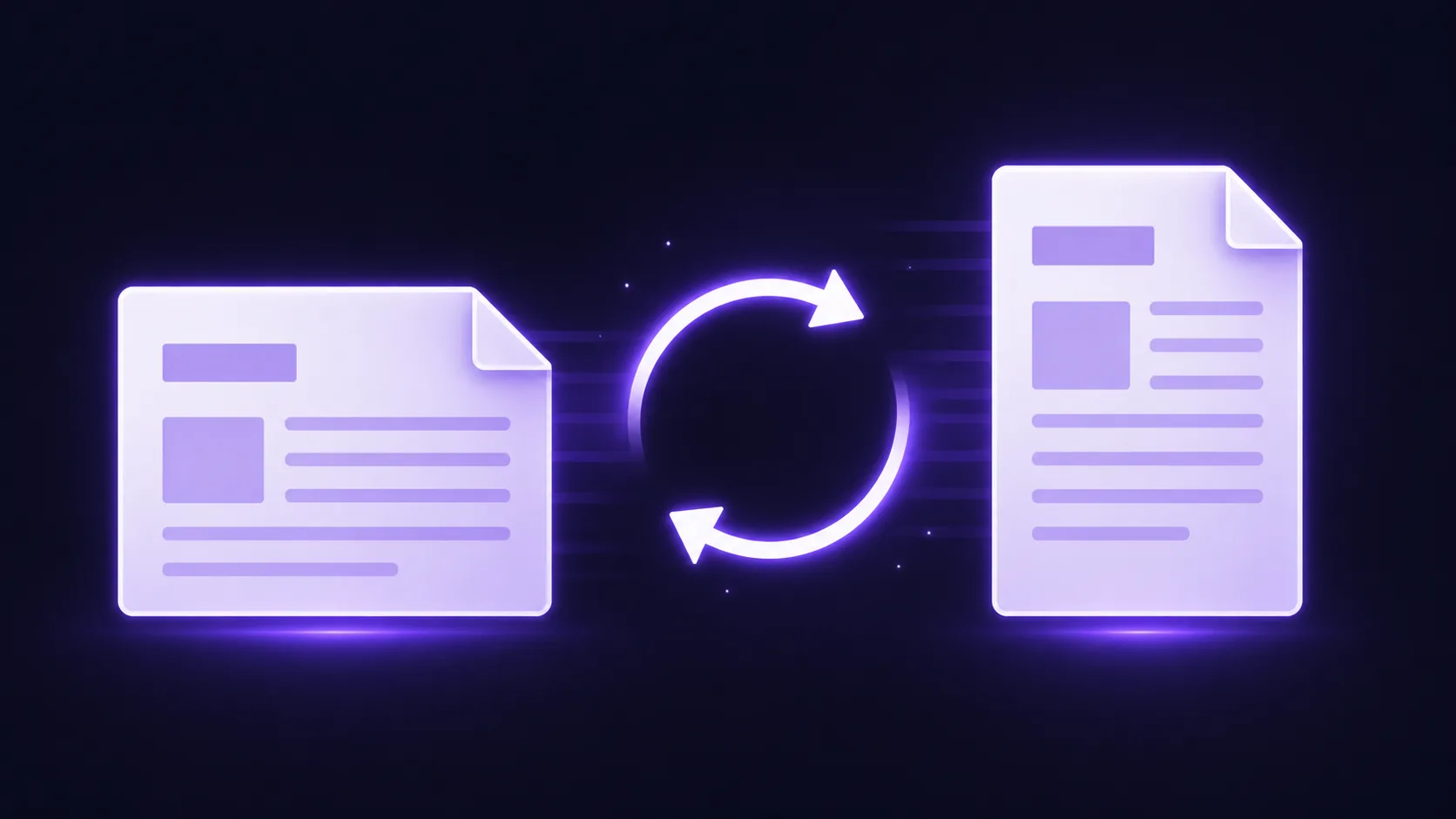
Flattening a PDF merges everything — base content, annotations, watermarks, form data, signatures — into a single static layer. Once flattened, there's nothing to separate, nothing to edit, nothing to undo.
What Flattening Actually Does
A PDF file isn't a flat image. It's a container with multiple layers:
The content layer holds the original text, images, and layout — the base document as it was created.
The annotation layer contains anything added on top: highlights, comments, sticky notes, stamps, drawn shapes, and freehand markups.
The form layer stores interactive form fields — text inputs, checkboxes, dropdowns, radio buttons — along with any data entered into them.
The watermark layer holds any watermarks or overlays applied after the original document was created.
The metadata layer contains hidden information: author name, creation date, edit history, embedded comments, and attached files.
When you flatten a PDF, layers 2 through 4 are merged into layer 1. The annotations, form data, and watermarks become part of the base content rendering — as if they were always part of the original page. They can no longer be selected, moved, edited, or deleted individually.
Metadata (layer 5) is a separate concern — flattening doesn't always remove it. For complete sanitization, strip the metadata separately.
When You Need to Flatten
After watermarking. If you add a "Confidential" or "Draft" watermark to a document using any tool — including EdgeDocs — the watermark is typically added as a separate layer. Someone with a PDF editor could remove it. Flattening makes the watermark part of the page image itself. It becomes irremovable.
After redacting. While EdgeDocs' redaction tool already rasterizes redacted pages (which is effectively a form of flattening for those specific pages), flattening the entire document ensures that all pages — including non-redacted ones — are merged into a final, tamper-proof state.
Before sharing filled forms. If you've filled out a PDF form (tax forms, applications, contracts with fillable fields), the entered data exists in editable form fields. Anyone who opens the file can change your entries. Flattening locks the form data into the page rendering — what you entered becomes static text that can't be modified.
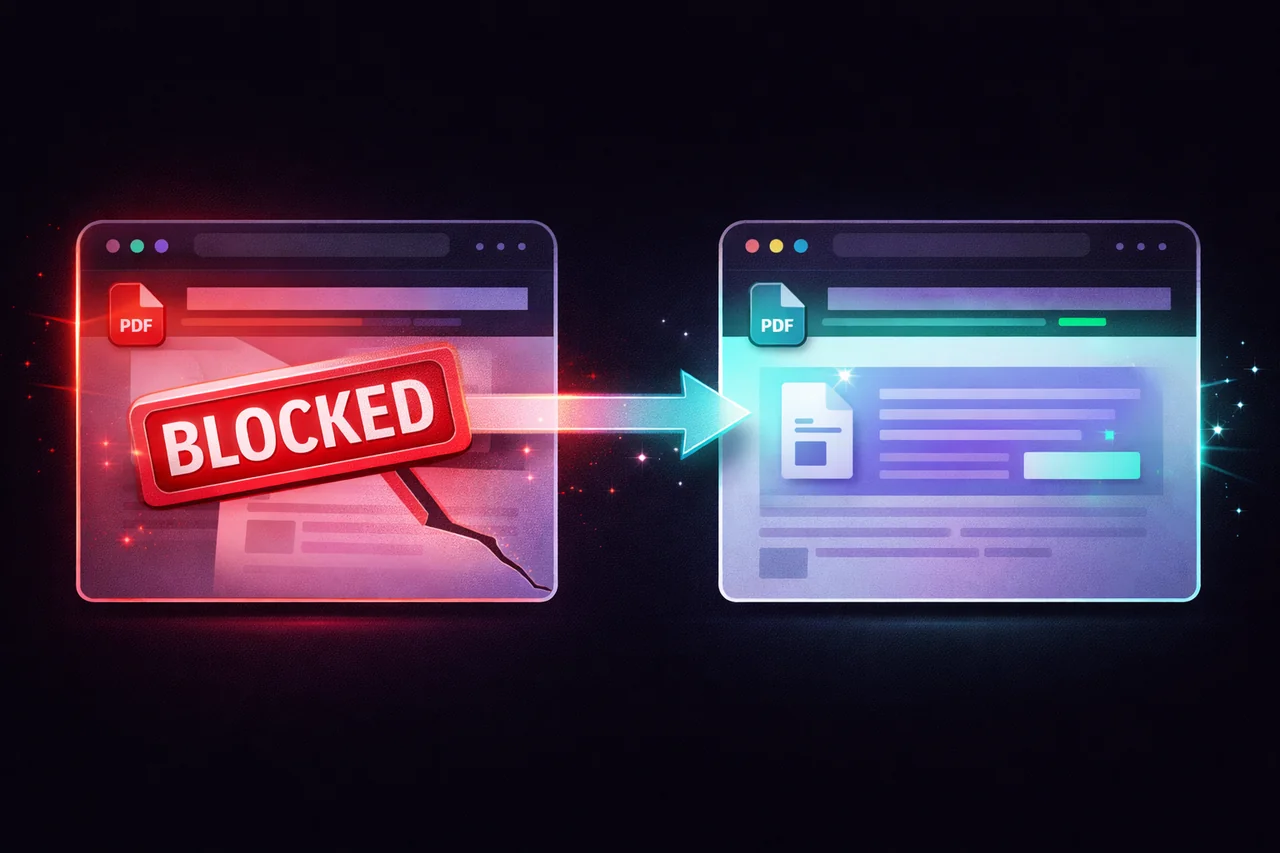
Before e-filing. Many court e-filing systems and government submission portals require flattened PDFs. Unflattened documents with interactive elements can cause upload errors. Flattening eliminates the interactive components and produces a simple, static document that any system can process.
Before printing from a layered source. Complex PDFs with overlapping layers and transparency effects can print incorrectly — missing elements, wrong colors, or garbled text. Flattening resolves these issues by reducing everything to a single predictable rendering.
After any editing, before final distribution. As a general rule, if a document is leaving your control — going to a client, opposing counsel, a regulatory body, or the public — flatten it first. This prevents any downstream editing and ensures the document appears exactly as you intended.
How to Flatten a PDF (Step by Step)
-
Open the EdgeDocs Flatten PDF tool in any browser. No software needed.
-
Select your PDF. The file loads locally in your browser — no upload to any server.
-
Flatten. The tool merges all layers into a single rendering.
-
Download the flattened PDF. Your original file is untouched. You get a new, flat copy where all layers are permanently merged.
That's it. The process takes seconds.
The Document Security Workflow
Flattening is most effective as the second-to-last step in a complete document preparation workflow. Here's the full sequence:
Step 1: Edit and prepare the content. Make all changes, fill all forms, add all annotations.
Step 2: Redact if needed. Remove any sensitive information using Redact PDF or Auto-Redact PII.
Step 3: Watermark if needed. Add classification labels or branding using Add Watermark.
Step 4: Flatten. Merge all layers into a single static rendering using Flatten PDF. This locks in the redactions, watermarks, form data, and annotations permanently.
Step 5: Strip metadata. Remove hidden document information using Strip Metadata. This eliminates author names, edit history, embedded comments, and other hidden data.
Step 6: Compress if needed. Reduce file size using Compress PDF to meet email or e-filing size limits.
The result is a clean, static, properly sized document with no hidden layers, no editable elements, no recoverable redactions, and no metadata leaks. Every step happens in your browser — your file never leaves your device.
Flattening vs. Other Security Measures
People sometimes confuse flattening with other document security features. Here's how they differ:
Flattening vs. password protection. Password protection restricts who can open or edit the file, but the document still contains editable layers behind the password. Flattening removes the layers entirely — there's nothing to edit even if someone bypasses the password.
Flattening vs. redaction. Redaction removes specific content (text, images) from the document. Flattening merges layers but doesn't remove content — it makes existing content uneditable. Use redaction to remove information, then flatten to lock everything in place.
Flattening vs. encryption. Encryption protects the file during transmission and storage. Flattening protects the file's content from modification after it's opened. They serve different purposes and work well together.
Common Mistakes
Flattening before you're done editing. Once flattened, changes can't be undone. Always save a copy of the original before flattening, and only flatten when the document is in its final state.
Skipping metadata removal. Flattening merges visual layers but doesn't always strip document-level metadata. Author names, file paths, and edit history can survive flattening. Always strip metadata as a separate step.
Assuming redaction tools flatten automatically. Some redaction tools apply visual overlays without flattening. The "redacted" content remains extractable underneath. EdgeDocs' redaction tool rasterizes affected pages (which destroys the text layer), but flattening the entire document adds an extra layer of assurance.
The Quick Version
Open EdgeDocs Flatten PDF. Drop your file in. Download the flattened copy. All layers — annotations, watermarks, form fields, comments — are permanently merged into a single static document.
For complete document security: redact → watermark → flatten → strip metadata → compress. All local. All private.
EdgeDocs is a privacy-first PDF toolkit where all processing happens locally in your browser. Files never leave your device. Try any tool free.
Ready to try secure PDF processing?
20+ privacy-first tools that process files entirely in your browser. No uploads, no servers, no risk.
Try EdgeDocs Free