How to Make a Scanned PDF Searchable (Free OCR, No Upload)
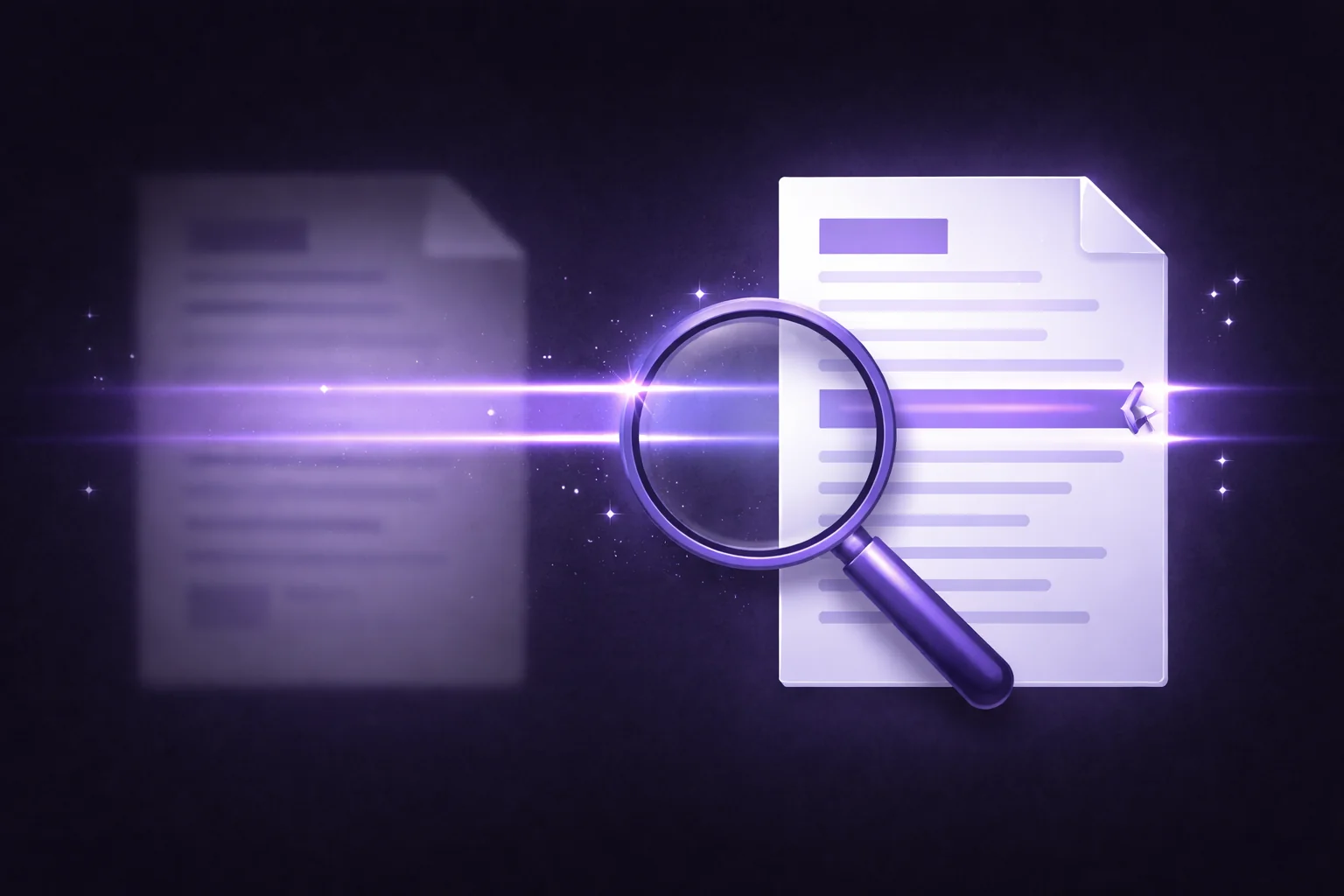
You have a scanned PDF — a contract that was printed and scanned, a receipt photographed with a phone, an old document digitized from paper. It looks like a normal PDF, but try to search for a word, select some text, or copy a paragraph. Nothing happens. The file is just a collection of images pretending to be a document.
This is one of the most common frustrations with PDFs. The document looks perfectly readable on screen, but the text is locked inside images. You can't search it, select it, copy from it, or extract data from it.
The fix is OCR — Optical Character Recognition. It reads the images, recognizes the text in them, and creates a searchable text layer behind each page. The document looks exactly the same, but now every word is selectable, searchable, and copyable.
Most OCR tools upload your scanned document to their servers for processing. For a scanned menu or a public brochure, that's fine. For a scanned contract, medical record, tax return, or legal filing, that's your most sensitive content passing through someone else's infrastructure.
Here's how to OCR a PDF entirely on your device.
How to Make a Scanned PDF Searchable (Step by Step)
Open the EdgeDocs PDF OCR tool. Works in any browser, no software to install.
Select your scanned PDF. The file loads locally in your browser — no upload.
Start OCR processing. The tool renders each page as an image, runs text recognition using Tesseract.js (an open-source OCR engine), and builds a new PDF with an invisible text layer positioned behind the original page images.
Download the searchable PDF. The document looks identical to the original, but now you can search for words, select text, and copy content. The original file is untouched.
Processing time depends on the number of pages and your device's speed. Expect roughly 5-15 seconds per page. A progress indicator shows which page is being processed.
What OCR Actually Does
A scanned PDF stores each page as an image — a photograph of text, not actual text characters. When you "read" a scanned PDF, you're reading a picture.
OCR analyzes that picture, identifies letters, words, and sentences, and records what it finds as actual text data. This text is added to the PDF as an invisible layer positioned precisely behind the page image. The visual appearance doesn't change, but the PDF now contains real, machine-readable text.
After OCR, you can:
Search the document. Press Ctrl+F (or Cmd+F) and search for any word or phrase. The PDF viewer highlights matches on the page — something impossible with a pure image scan.
Select and copy text. Click and drag to select paragraphs, sentences, or individual words, then copy and paste them into other documents, emails, or spreadsheets.
Extract data. Other tools can now read the text in the PDF. Convert a scanned financial table to Excel using PDF to Excel, or extract specific information programmatically.
Redact by text selection. With a searchable text layer, Redact PDF and Auto-Redact PII can identify and remove specific words and patterns — much more precise than drawing boxes over areas of an image.
When You Need OCR
Old contracts and legal documents. Archived documents that were scanned from paper are often image-only. OCR makes them searchable for due diligence, discovery, or reference.
Scanned receipts and invoices. Financial documents scanned or photographed for record-keeping become usable data sources after OCR — you can extract amounts, dates, and vendor names instead of retyping them.
Medical records. Patient records from older systems or paper archives become searchable after OCR, making it possible to find specific diagnoses, medications, or visit dates without reading every page.
Academic and research documents. Older journal articles, thesis documents, and research papers that exist only as scans become fully searchable and quotable after OCR.
Government and public records. FOIA responses, court filings, and public documents are frequently released as scanned PDFs. OCR makes them searchable for journalists, researchers, and legal professionals.
Tips for Better OCR Results
Scan quality matters. Clean, high-contrast scans at 200-300 DPI produce the best OCR results. Blurry, low-resolution, or skewed scans reduce accuracy.
Straight alignment helps. Pages that are rotated or skewed produce worse results. If your scanned pages are crooked, use Rotate PDF to straighten them before running OCR.
English text works best. Tesseract.js supports multiple languages, but English recognition is the most accurate. Documents with mixed languages or unusual fonts may have lower accuracy on some words.
OCR isn't perfect. Complex layouts, handwritten text, unusual fonts, and low-quality scans can produce errors. Always review the OCR output for critical documents — especially names, numbers, and dates.
The file will be larger. OCR adds a text layer to the PDF, which increases the file size slightly. If size matters, run the result through Compress PDF afterward.
Why OCR Locally?
Scanned documents are often the most sensitive files you handle — they're contracts, medical records, financial statements, and identification documents that were important enough to scan and preserve in the first place.
Server-based OCR tools upload your scanned document to their servers, where their OCR engine processes the images. Your document — with every name, number, and detail visible in the scan — sits on their infrastructure during processing.
EdgeDocs runs OCR entirely in your browser using Tesseract.js, an open-source engine compiled to WebAssembly. The scanned images are analyzed on your device's processor. The text layer is built on your device. The searchable PDF is saved to your device. At no point does any page or any recognized text leave your browser.
Make your scanned PDF searchable now — free, private, no upload.
EdgeDocs is a privacy-first PDF toolkit where all processing happens locally in your browser. Files never leave your device. Try any tool free.
Ready to try secure PDF processing?
20+ privacy-first tools that process files entirely in your browser. No uploads, no servers, no risk.
Try EdgeDocs Free