How to Merge Bank Statements for Audits Without Uploading Them
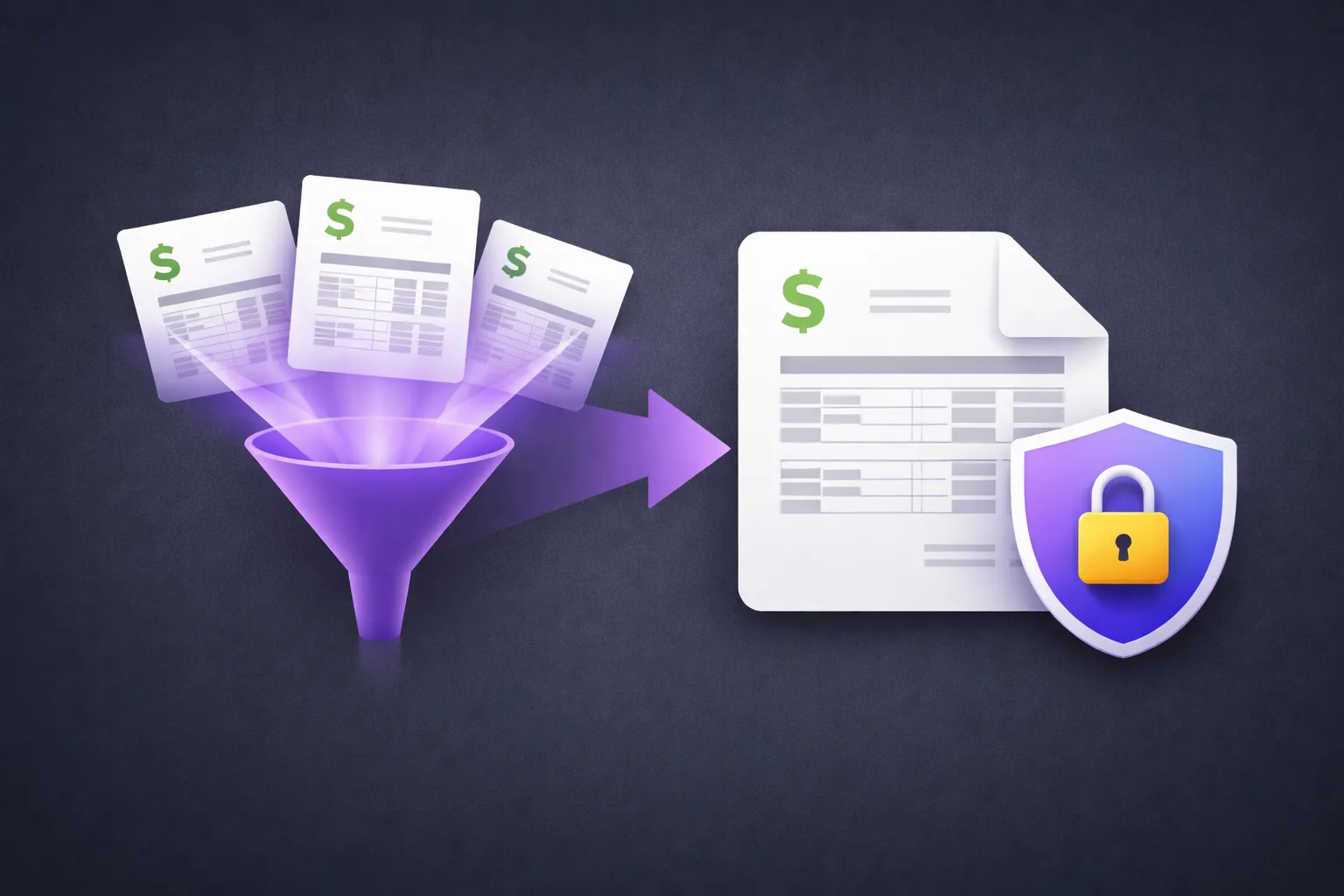
Whether you're preparing for a tax filing, responding to an audit request, applying for a loan, or compiling financial records for due diligence — at some point you need to combine multiple bank statement PDFs into a single document.
The statements arrive as separate monthly PDFs from your bank. The auditor or lender wants them in one file, in chronological order, with no gaps. Simple enough.
Until you consider what those PDFs contain: account numbers, transaction histories, balances, payee names, addresses, and in some cases Social Security or tax identification numbers. These are some of the most sensitive documents you handle.
The question is where those files go when you merge them.
The Server Upload Problem
Most online PDF merge tools work the same way: you upload all your files, their server combines them, and you download the result. During this process, every bank statement you uploaded — with every account number, every transaction, every balance — sits on someone else's server.
The merge services promise encryption and automatic deletion. But "deleted after one hour" means your complete financial history existed on a third party's infrastructure for up to an hour. If you're merging 12 months of statements for a tax audit, that's a year of financial activity passing through someone else's system.
For personal finances, you might accept this risk. For a business preparing for an audit, a CPA handling client financials, or an accountant compiling records for due diligence — the calculus is different.
How to Merge Statements Locally
EdgeDocs Merge PDF combines multiple PDFs into a single document entirely in your browser. Here's the workflow:
Open the Merge PDF tool. No software to install.
Add your bank statement PDFs. Select all the files you need to combine. They load into your browser's local memory — no upload to any server.
Arrange the order. Drag the files into chronological order (or whatever sequence the auditor requires). Most audit requests want oldest to newest.
Merge and download. The combined PDF is created locally and saved to your device. At no point did any of your bank statements leave your computer.
The Full Audit Preparation Workflow
Merging is usually just one step in preparing financial documents. Here's the complete workflow for producing a clean, secure audit package:
1. Merge the statements into a single chronological PDF using Merge PDF.
2. Redact account numbers if needed. Some audit requests don't require full account numbers — the last four digits are sufficient. Use Redact PDF to permanently remove the full numbers, or Auto-Redact PII to automatically find and flag account number patterns, SSNs, and other sensitive data throughout the document.
3. Strip metadata. Bank statement PDFs can contain hidden information — the bank's internal document ID, creation timestamps, and software identifiers. Strip Metadata removes this before sharing.
4. Flatten the document. Flatten PDF merges all layers into a single rendering, ensuring nothing can be modified by the recipient.
5. Compress if needed. A year of bank statements can be a large file. Compress PDF reduces the size for email attachment or portal upload.
Every step happens locally. Your financial data never touches a server at any point in the process.
For CPAs and Financial Professionals
If you handle client financials, the privacy question isn't just about preference — it's about professional responsibility.
Client confidentiality. Using an online merge tool means your client's financial data passes through a third party. Depending on your jurisdiction and professional standards, this may require client disclosure or consent — and most clients would prefer their bank records not be uploaded to a free PDF website.
Data processing agreements. Under regulations like GDPR and CCPA, transferring personal financial data to a third-party processor triggers specific compliance obligations. If the data never leaves the client's (or your) device, the transfer never happens.
Audit trail simplicity. When a regulator asks how client documents were processed, "all processing happened locally in a browser-based tool — no files were transmitted externally" is a clean answer. "We uploaded them to another service's servers, which promise to delete after two hours" is a more complicated conversation.
Common Financial Document Scenarios
| Scenario | Tools Needed | Why Local Matters |
|---|---|---|
| Annual tax prep (12 monthly statements) | Merge, Compress | Full year of transactions — maximum sensitivity |
| Loan application | Merge, Redact (partial account numbers) | Lender needs proof of income, not full account access |
| Business audit response | Merge, Strip Metadata, Flatten | Auditor gets clean, tamper-proof package |
| Due diligence for acquisition | Merge, Redact, Flatten, Compress | Highest sensitivity — trade secrets and financials |
| Insurance claim | Merge specific months, Compress | Claim-relevant periods only |
The Quick Version
Download your bank statements as PDFs. Open EdgeDocs Merge PDF. Add the files, arrange them in order, merge, and download. Your financial data never leaves your device.
For a complete audit package: merge → redact → strip metadata → flatten → compress. All local. All private.
Try any tool free — 21 privacy-first PDF tools, all running locally.
EdgeDocs is a privacy-first PDF toolkit where all processing happens locally in your browser. Files never leave your device.
Ready to try secure PDF processing?
20+ privacy-first tools that process files entirely in your browser. No uploads, no servers, no risk.
Try EdgeDocs Free