PDF Compression for Legal Teams: Reducing File Size Without Risking Confidentiality
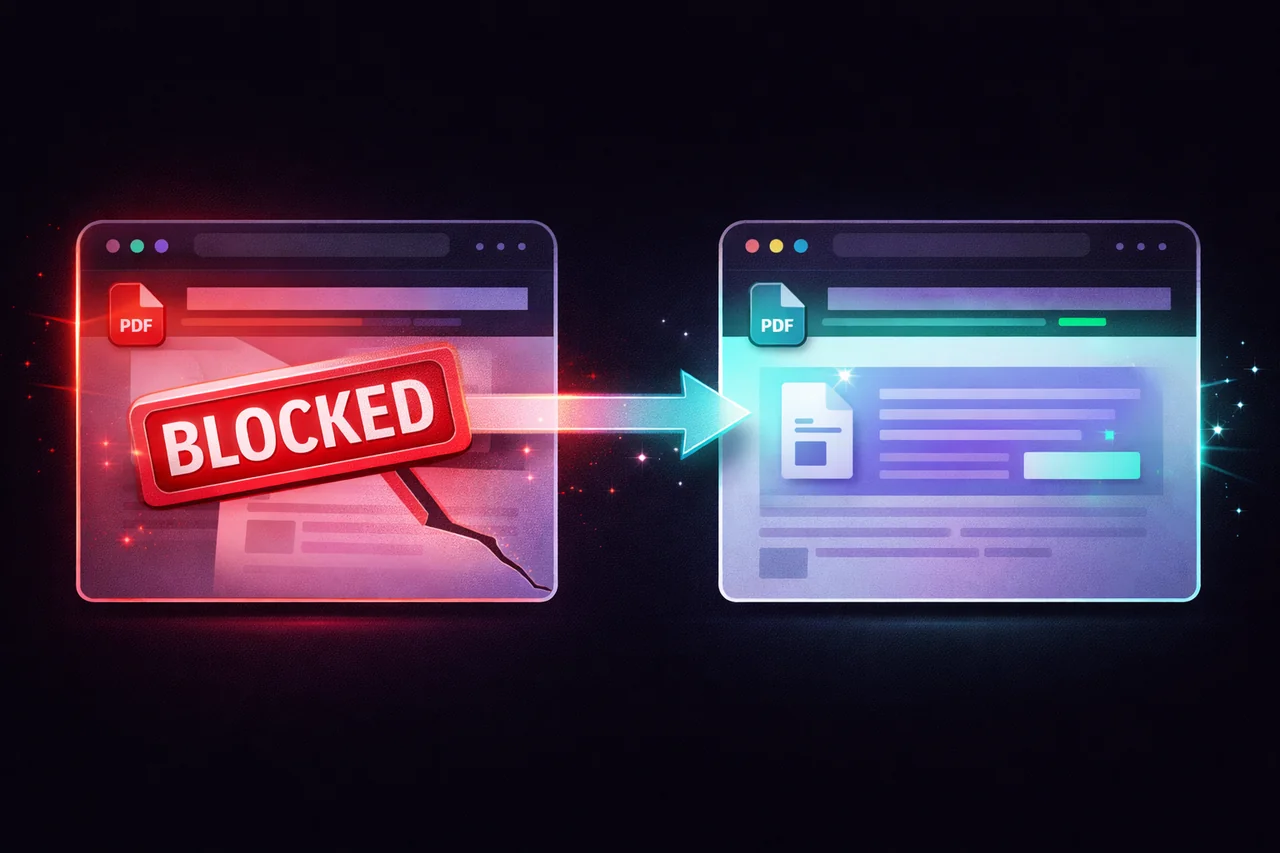
If you work in law, you've run into this: a court's e-filing system rejects your PDF because it exceeds the size limit. Or a client email bounces because the signed contract is 35MB. Or you're storing thousands of case files and your firm's cloud storage is filling up.
The instinct is to find a PDF compressor online and shrink the file. The problem is that legal documents are exactly the kind of files that should never be uploaded to a third-party server.
Attorney-client privilege, confidential settlement terms, sealed court filings, witness statements, financial disclosures — these are documents where even temporary exposure on someone else's infrastructure creates risk. "We delete files after one hour" is not the same as "your file never left your device."
Here's how to compress legal PDFs safely.
The File Size Problem in Legal Work
Legal PDFs are large for specific reasons:
Scanned documents. Court filings, signed contracts, notarized documents, and client correspondence are often scanned from paper. Each scanned page is a high-resolution image — a 50-page scanned contract can easily be 30-40MB.
Exhibit packages. Litigation bundles and discovery responses combine dozens of documents into a single PDF. When each exhibit is itself a multi-page scan, the combined file can reach hundreds of megabytes.
Court filing limits. Many e-filing systems impose strict size caps. Federal courts using CM/ECF generally limit individual PDF uploads to 35MB. State courts vary — some cap at 10MB, others at 25MB. Exceeding the limit means splitting your filing or compressing it.
Email constraints. Most legal email systems cap attachments at 20-25MB. When opposing counsel or a client needs a file immediately, a download link isn't always acceptable — especially for privileged documents where you want to minimize the number of systems that touch the file.
Why Most Online Compressors Are a Problem for Legal Work
When you upload a legal document to an online PDF compressor, here's what happens:
The full, uncompressed PDF — containing all confidential content — travels across the internet to the compressor's server.
The server processes the file, creating a compressed copy.
The compressed file travels back to you.
The original uploaded file sits on the server until it's deleted (typically 1-2 hours).
During this window, your client's confidential information exists on infrastructure you don't control. You don't know who has access to those servers. You don't know what logging is in place. You don't know whether the "automatic deletion" actually removes the file from all backups and caches.
For a restaurant menu or a marketing brochure, this is fine. For a settlement agreement containing financial terms under a confidentiality clause, it's a different calculation.
The ABA's Model Rules of Professional Conduct require lawyers to make "reasonable efforts to prevent the inadvertent or unauthorized disclosure of, or unauthorized access to, information relating to the representation of a client" (Rule 1.6(c)). Whether uploading a client's confidential document to a third-party compression service qualifies as "reasonable" is a question every lawyer should consider before clicking "upload."
How to Compress Legal PDFs Without the Upload
EdgeDocs' Compress PDF tool runs entirely in your browser. The file loads from your device into the browser's local memory, compression happens on your machine's processor, and the compressed file is saved back to your device. At no point is the PDF sent to any server.
This isn't a marketing claim — it's an architectural decision. There is no server-side component to send the file to. You can verify this by disconnecting from the internet after loading the page: the tool continues to work because it doesn't need a network connection to process your file.
The process:
- Open the Compress PDF tool in your browser.
- Select your PDF. It loads locally — no upload.
- Choose a compression level: Low (minimal quality impact), Medium (good balance), or High (maximum reduction).
- Review the results. EdgeDocs shows the original file size, compressed file size, and exact percentage reduction.
- Download the compressed copy.
For most scanned legal documents, Medium compression reduces file size by 30-60% with no perceptible change in text readability. A 35MB scanned contract typically compresses to 12-18MB — well within most e-filing and email limits.
Compression Settings for Common Legal Documents
| Document Type | Recommended Level | Expected Reduction | Notes |
|---|---|---|---|
| Scanned contracts | Medium | 30-60% | Text remains fully readable; signatures stay clear |
| Court filings with exhibits | Medium or High | 40-70% | High compression works well for text-heavy exhibits |
| Depositions and transcripts | Low or Medium | 15-40% | These are usually text-heavy with small file sizes already |
| Photo evidence | Low | 10-25% | Use Low to preserve image detail that may be evidentiary |
| Financial disclosures | Medium | 30-50% | Tables and numbers compress well without legibility loss |
| Notarized documents with seals | Low or Medium | 20-40% | Keep seals and stamps legible — check the result before filing |
Beyond Compression: The Full Legal Document Workflow
Compressing a file is often just one step in preparing a legal document for sharing. Here's the complete workflow for producing a clean, secure, properly sized legal PDF:
1. Redact first, if needed.
If the document contains information that shouldn't be visible to the recipient — names in a settlement agreement being shared with a non-party, financial details in a filing that should be partially sealed, PII in discovery responses — redact it before compressing. EdgeDocs' redaction rasterizes the affected pages, permanently destroying the text layer. The information is gone, not hidden.
For documents with many instances of PII scattered throughout, the Auto-Redact PII tool can automatically detect Social Security numbers, email addresses, phone numbers, and credit card numbers.
2. Strip metadata.
Legal PDFs often contain hidden information that shouldn't travel with the file: the drafting attorney's name, the firm's internal file path, revision history, comments from review cycles, and embedded objects from the original word processing document.
Run the file through Strip Metadata to remove document-level hidden data before sharing.
3. Flatten the document.
Flattening merges all layers into a single rendering. This ensures that form fields, annotations, comments, and any remaining interactive elements are baked into the final document. The recipient gets a clean, static PDF with no hidden layers.
4. Compress last.
Compress the final, cleaned document to meet file size requirements. Compressing after redacting and flattening ensures you're not wasting bytes on content that was removed.
The workflow: Redact → Strip Metadata → Flatten → Compress
All four steps happen in your browser. Your file never leaves your device at any point in the process.
Handling Court E-Filing Size Limits
If your compressed file still exceeds the court's size limit, you have two options:
Split the filing. Use the Split PDF tool to break the document into volumes that each fall under the limit. Most courts accept multi-part filings as long as they're clearly labeled (Volume 1 of 3, etc.).
Remove unnecessary pages. The Remove Pages tool lets you strip out blank pages, duplicate exhibits, or cover pages that aren't required by the court's filing rules.
Both tools process locally — same privacy guarantee as compression.
For Firm IT and Compliance Officers
If you're responsible for your firm's document handling policies, EdgeDocs' architecture may simplify your compliance posture:
No data processing agreement needed. Because files never leave the device, EdgeDocs doesn't process client data on its servers. There's no data to protect, no breach to report, and no DPA to negotiate.
GDPR simplified. Under GDPR, transferring personal data to a third-party processor triggers specific obligations. EdgeDocs eliminates this trigger entirely — the data stays on the user's device.
No cloud storage risk. Files aren't stored on EdgeDocs' infrastructure at any point. There's no server-side storage to secure, audit, or include in your firm's data retention policy.
Works on any device. Browser-based means it works on firm-managed laptops, personal devices, Chromebooks, and iPads — no software installation required, no IT provisioning needed.
The Quick Version
Legal PDFs need to be small enough to file and email, but too confidential to upload to random compression websites. EdgeDocs Compress PDF processes everything in your browser — your file never touches a server. Medium compression handles most scanned legal documents without affecting readability.
For the complete secure workflow: redact → strip metadata → flatten → compress. All local. All private.
EdgeDocs is a privacy-first PDF toolkit where all processing happens locally in your browser. Files never leave your device. Try any tool free.
Ready to try secure PDF processing?
20+ privacy-first tools that process files entirely in your browser. No uploads, no servers, no risk.
Try EdgeDocs Free