How to Redact a PDF Without Adobe Acrobat
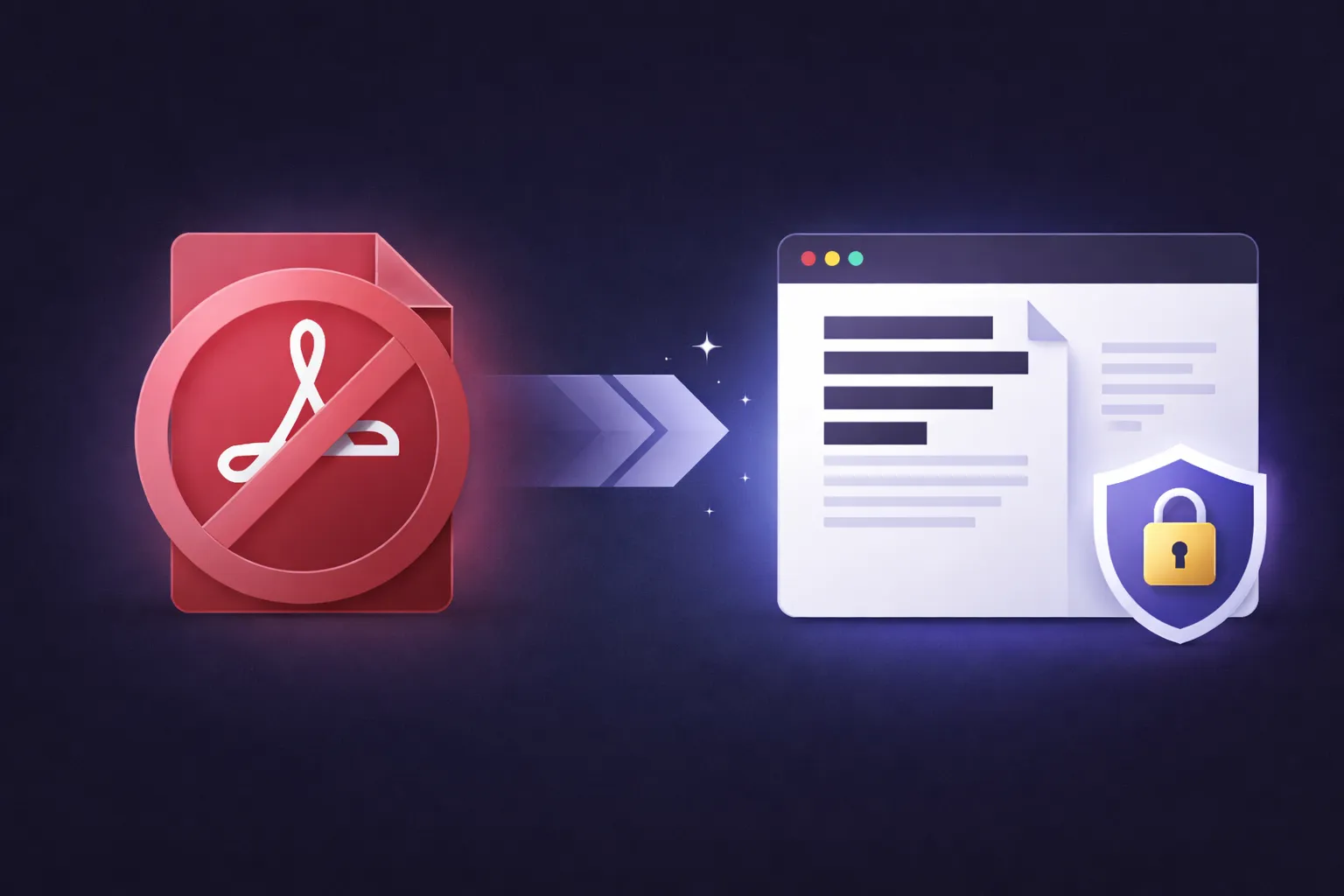
Adobe Acrobat Pro has a solid redaction tool. It also costs $22.99 per month — over $275 a year — for a feature you might use a few times a month.
If you're looking for how to redact a PDF without Adobe, you're not alone. It's one of the most searched questions in the PDF tools space, and for good reason. Paying for an enterprise subscription to black out a few lines in a contract doesn't make sense for most people.
The good news: you don't need Adobe. You don't need to install any software at all. And you can do it without uploading your document to anyone's server.
Why Adobe Isn't the Only Option
Adobe invented the PDF format, and Acrobat Pro is a genuinely capable tool. But it has three problems for most users who just need redaction:
It's expensive. Acrobat Pro is $22.99/month or $239.88/year. If all you need is to remove a Social Security number from a form before emailing it, that's an expensive way to do it.
It's complex. The redaction workflow in Acrobat involves navigating to Tools → Redact → Mark for Redaction → Apply Redactions → Sanitize Document. That's five steps through nested menus for something that should take 30 seconds.
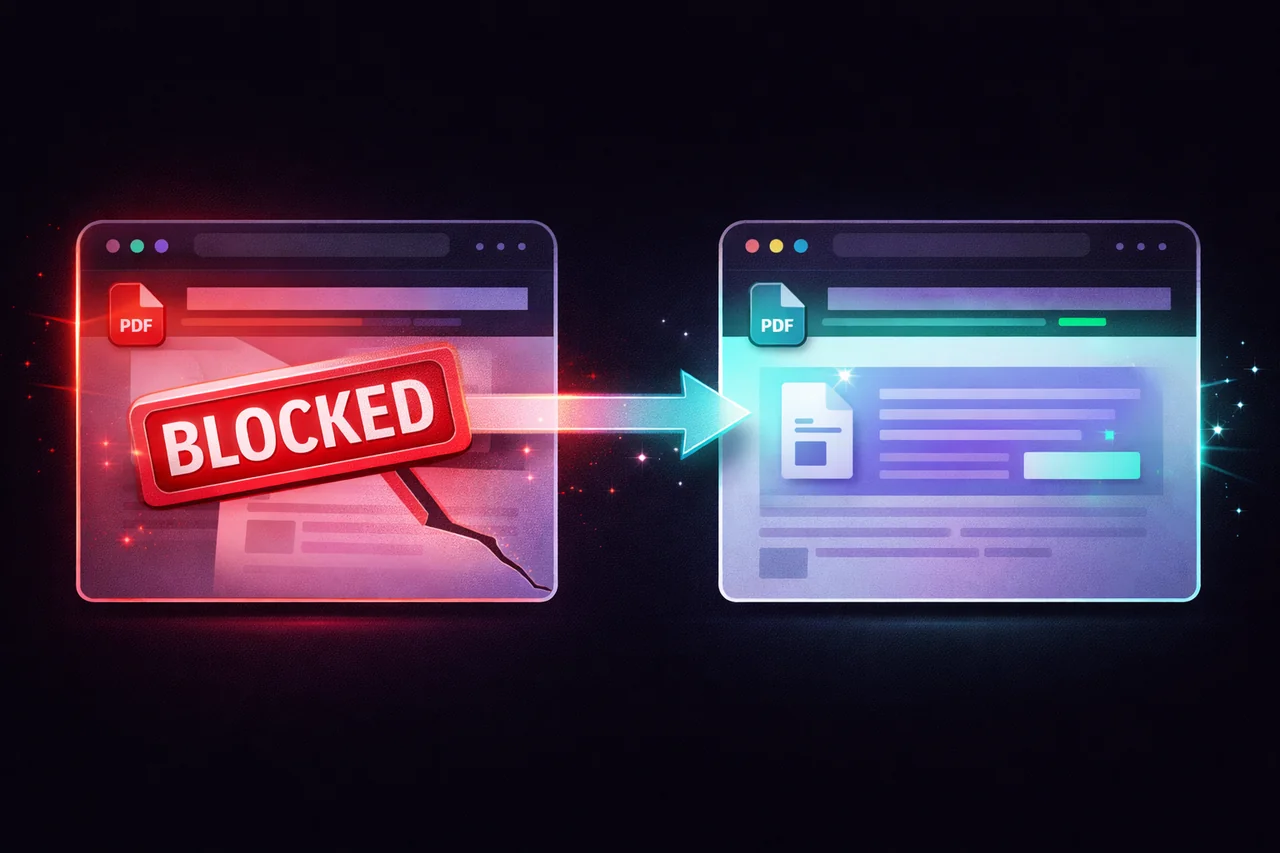
The free version can't redact. Adobe Reader — the free version most people have — doesn't include redaction at all. It has highlight and drawing tools, but those only add visual overlays. The text remains in the file and is trivially recoverable. This is one of the most common ways people accidentally leak information they thought they removed.
How to Redact a PDF Without Adobe (Step by Step)
-
Open the EdgeDocs Redact PDF tool in any browser. No software to download, no Adobe subscription needed.
-
Select your PDF. The file loads locally in your browser — it's never uploaded to a server.
-
Mark what you want to redact. Click and drag to select text, or draw boxes over areas containing sensitive information — names, account numbers, addresses, signatures, anything that needs to go.
-
Apply the redaction. EdgeDocs rasterizes the redacted pages, which permanently destroys the text layer. The selected content isn't hidden behind a black box — it's genuinely removed from the file. There's nothing left to extract, copy, search, or recover.
-
Download your redacted PDF. The original file on your device is untouched. You get a new, clean copy with the sensitive content permanently gone.
The entire process takes under a minute for most documents.
What Makes This Different from a Black Box
This is worth understanding because it's the most common redaction mistake people make — including with Adobe's own free tools.
When you use a basic PDF editor to draw a black rectangle over text, you're adding a visual layer on top of the document. The text underneath is still there. Anyone can select it, copy it, paste it into another document, or search for it. The "redaction" is purely cosmetic.
True redaction removes the text from the PDF's data structure entirely. EdgeDocs achieves this through rasterization — converting the redacted pages into flat images. Once a page is rasterized, there is no text layer. There are no characters to extract. The page is a picture, and the redacted areas contain only the background color. Nothing else.
This is the same approach used by some government agencies for declassified documents. It's the most bulletproof method because it eliminates any possibility of text recovery — there's simply nothing left to recover.
What About Metadata?
Redacting visible text is only half the job. PDFs can contain hidden information that doesn't appear on any page:
- Author name and organization — who created the document
- Creation and modification dates — when it was written and last edited
- Edit history and comments — previous versions, tracked changes, reviewer notes
- Embedded files — attached spreadsheets, images, or other documents
- Form field data — previously entered form values that may still be stored
After redacting visible content, run your file through Strip Metadata to remove document-level hidden data, then Flatten PDF to merge all remaining layers into a single, clean rendering.
The full sanitization workflow is: redact → strip metadata → flatten. This produces a document that contains only what's visible on the final pages — nothing hidden, nothing recoverable, nothing extra.
Where Your File Goes (And Doesn't Go)
Here's the part most "Adobe alternatives" don't mention: nearly all of them upload your PDF to their servers.
Smallpdf, iLovePDF, PDF24's online tool, Xodo's web version — they all require your document to travel to someone else's infrastructure for processing. They encrypt it, they promise to delete it, and they comply with GDPR. But your unredacted document still sat on a third-party server for some period of time.
Think about what you're redacting. If you're removing a name, an address, a financial figure, or a medical detail from a document, that document contains exactly the kind of information you don't want on someone else's server — even temporarily.
EdgeDocs processes everything in your browser. Your file never leaves your device. There is no server-side component. You can verify this yourself: disconnect from the internet after loading the page, and the tool still works. That's because the processing engine runs locally on your machine, not on a remote server.
When You Need More Than Manual Redaction
Manual redaction — selecting individual pieces of text to remove — works well for single documents where you know exactly what needs to go. But some situations call for more:
Bulk PII detection. If you have a document full of personal information and you're not sure where all of it is, EdgeDocs' Auto-Redact PII tool can automatically detect patterns like Social Security numbers, email addresses, phone numbers, and credit card numbers. It flags them for review so you can approve what gets redacted.
Document comparison. If you need to verify what changed between an original and a redacted version, the Compare PDF tool highlights differences between two documents side by side.
Batch workflows. For teams processing large volumes of sensitive documents, Pro subscribers get unlimited access to all tools with higher file size limits.
Quick Comparison: EdgeDocs vs. Adobe Acrobat Pro
| Feature | EdgeDocs | Adobe Acrobat Pro |
|---|---|---|
| True redaction | ✅ (rasterization) | ✅ (content removal) |
| File stays on device | ✅ (always) | ✅ (desktop app only) |
| Metadata sanitization | Via separate tool | Built-in "Sanitize" |
| Auto-detect PII | Via separate tool | Pro only |
| Cost | Free (3/day) / $7.99/mo | $22.99/mo |
| Requires installation | No (browser) | Yes (desktop app) |
| Works on Chromebook/Linux | ✅ | ❌ |
| Works offline | ✅ | ✅ |
Adobe's desktop app is a strong tool if you already have it. But if you're paying $22.99/month mainly for redaction, or if you need to redact on a device where you can't install software, EdgeDocs does the job for free — and your file never touches a server.
The 30-Second Version
Open EdgeDocs Redact PDF. Select your file. Mark what needs to go. Download the redacted copy. Your file never leaves your device, the redaction is permanent, and it costs nothing.
For complete document sanitization afterward, use Strip Metadata and Flatten PDF.
EdgeDocs is a privacy-first PDF toolkit where all processing happens locally in your browser. Files never leave your device. Try any tool free.
Ready to try secure PDF processing?
20+ privacy-first tools that process files entirely in your browser. No uploads, no servers, no risk.
Try EdgeDocs Free