Redaction vs Blackout: Why Covering Text Fails
You've got a PDF with a Social Security number, a client's home address, or a confidential salary figure. You need to share the document, but that information has to go.
So you open a PDF editor, draw a black rectangle over the text, and save the file. It looks redacted. The text is invisible on screen. Job done — right?
No. The text is still in the file.
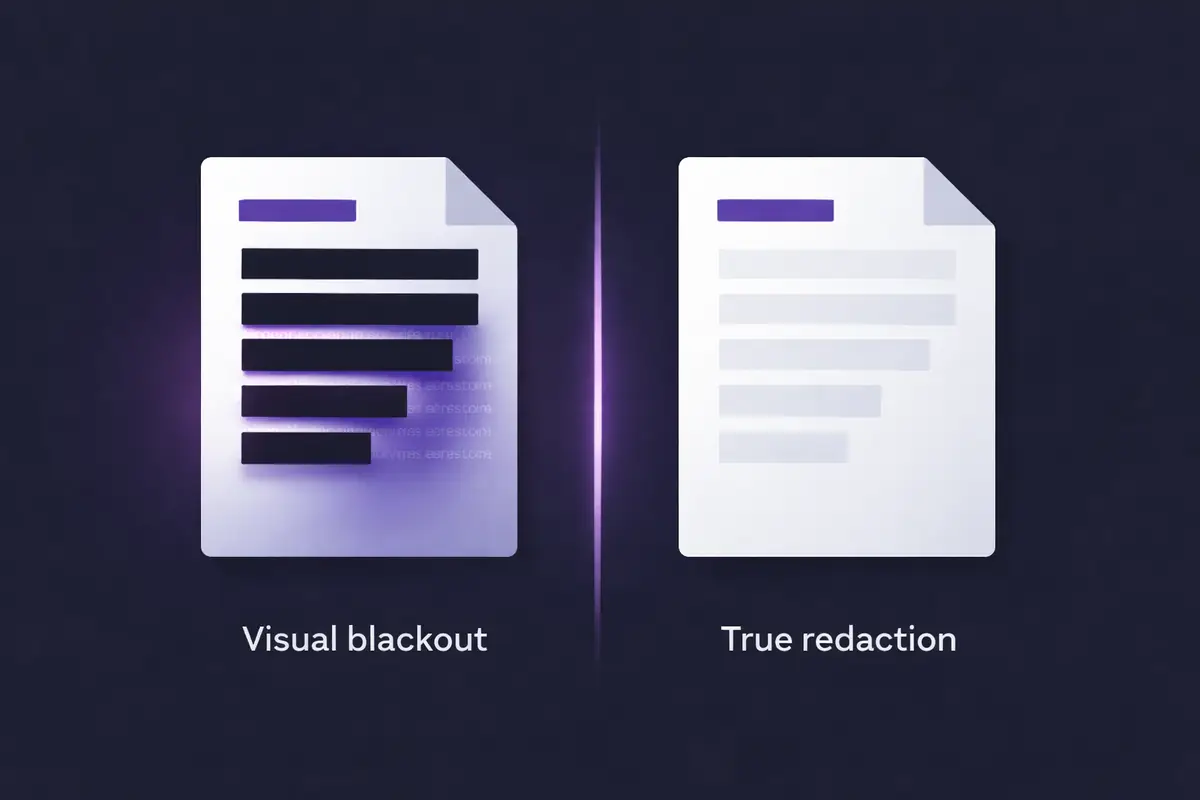
This is the single most dangerous misconception about PDF redaction. A black box drawn over text is a visual layer sitting on top of the document's content. The actual characters — every letter, every digit — remain embedded in the PDF's data structure. Anyone can recover them.
How "Blacked Out" Text Gets Exposed
PDFs are not flat images. They're structured files with multiple layers: a visual rendering layer (what you see on screen) and an underlying text layer (the actual character data). When you draw a black rectangle in most PDF editors, you're adding a shape to the visual layer. The text layer doesn't change.
This means the "redacted" text can be recovered in seconds by:
- Selecting and copying. Click behind the black box, select the text, paste it into another document. The original characters appear in full.
- Using "Find" or "Search." Press Ctrl+F, type a word you think was redacted, and the PDF will locate it — because the text still exists in the file.
- Opening in a text editor. PDF files are partially human-readable. Opening one in a basic text editor can reveal raw text content that was never removed.
This isn't theoretical. It has happened in high-profile legal and government cases — documents released publicly with black boxes that were trivially reversible, exposing names, financial details, and classified information that were supposed to be permanently hidden.
Why This Keeps Happening
The root cause is that most PDF editing tools treat redaction as a cosmetic operation. When you use a highlight tool, a shape tool, or an annotation tool to "black out" text, these tools were never designed to modify the underlying content stream. They add visual elements. They don't delete data.
Even some tools that have a feature labeled "redact" don't actually perform permanent content removal. They apply a visual overlay and call it done. Unless the tool explicitly rewrites the PDF's content stream — removing the characters from the file structure entirely — the data survives.
The people making these mistakes aren't careless. They're lawyers preparing court filings, government employees processing public records requests, HR teams sharing internal documents. They believe they've removed the information because it looks removed. The tools they're using gave them no indication that it wasn't.
What True Redaction Actually Does
Real redaction doesn't hide text. It destroys it.
When a PDF is properly redacted, the tool rewrites the document's internal structure. The selected text is removed from the content stream. The characters no longer exist anywhere in the file — not in the text layer, not in the metadata, not in any extractable form.
There are two main approaches to permanent redaction:
Content stream rewriting removes the specific text objects from the PDF's internal structure while preserving the rest of the document in its original vector format. This is surgically precise but complex to implement correctly.
Page rasterization converts the redacted pages into flat images. The entire text layer is destroyed and replaced with a pixel-based rendering. There are no characters left to extract, search, or copy — because the page is now an image, not a text document. This is the most bulletproof approach because it eliminates any possibility of text recovery.
Both approaches produce a document where the redacted content is genuinely, irreversibly gone.
The Hidden Risk: Metadata
Even after properly redacting visible text, a PDF can still contain sensitive information you didn't know was there. Document metadata can include the author's name, the organization, creation and modification dates, edit history, embedded comments, form field data, and even earlier versions of the document.
Metadata doesn't appear on screen. You won't see it when you scroll through the pages. But it's stored in the file and can be extracted with basic tools.
After redacting a PDF, it's good practice to also strip the document's metadata and flatten it into a final, clean version. This removes hidden layers, comments, annotations, and any structural data that could leak information.
When Redaction Matters Most
If you handle any of the following, proper redaction isn't optional — it's a compliance requirement:
Legal documents. Court filings, discovery responses, contracts shared between parties. Failed redaction in legal proceedings has led to sanctions, malpractice claims, and exposed attorney-client privileged information.
Healthcare records. HIPAA requires that protected health information (PHI) be permanently removed — not just visually hidden — before documents are shared. A visual blackout that can be reversed is a HIPAA violation.
Financial documents. Bank statements, tax records, loan applications — any document containing account numbers, SSNs, or financial figures that needs to be shared with a third party.
Government and FOIA. Agencies releasing documents under freedom of information laws must ensure redacted content is truly removed. Improper redactions in government document releases have led to some of the most publicized failures.
GDPR compliance. Under GDPR, personal data must be protected when documents are processed or shared. "Protected" means permanently removed — not visually obscured. And if you're using a server-based tool to do the redacting, you're also transferring that personal data to a third-party processor, which creates its own compliance burden.
The Upload Problem
Here's the part that often gets overlooked: even if a tool performs true redaction, the question is where the redaction happens.
Most online PDF redaction tools require you to upload your document to their servers. Think about what that means in practice. You have a document containing information so sensitive that you need to permanently destroy parts of it. And the first step in that process is sending the full, unredacted document to someone else's server.
Even when these services promise encryption and automatic deletion, your unredacted file has traveled across the internet and been processed on infrastructure you don't control. For documents containing PII, financial data, medical records, or privileged legal information, that's an unnecessary risk.
The safest approach is redaction that happens entirely on your own device — where the file never leaves your browser, never touches a server, and never exists anywhere except on your machine.
How to Redact a PDF Properly
Here's a quick checklist for safe redaction:
- Use a tool that performs true redaction — not just visual overlay. Verify that the tool removes text from the PDF's content stream or rasterizes the page.
- Don't upload sensitive documents to a server. Use a tool that processes everything locally in your browser.
- Strip metadata after redacting. Remove author information, edit history, comments, and embedded objects.
- Flatten the PDF. This merges all layers into a single, final version with no hidden content.
- Test the result. Open the redacted file, try selecting where the text was, try searching for it, try copying it. If anything comes back, the redaction failed.
EdgeDocs' Redact PDF tool performs true redaction by rasterizing the redacted pages — permanently destroying the text layer so content cannot be recovered. Everything is processed in your browser. Your file never leaves your device.
For documents with large volumes of personally identifiable information, our Auto-Redact PII tool can automatically detect and flag patterns like Social Security numbers, email addresses, phone numbers, and credit card numbers.
After redacting, run your file through Strip Metadata and Flatten PDF to ensure the document is fully sanitized before sharing.
EdgeDocs is a privacy-first PDF toolkit where all processing happens locally in your browser. Files never leave your device. Try any tool free.
Ready to try secure PDF processing?
20+ privacy-first tools that process files entirely in your browser. No uploads, no servers, no risk.
Try EdgeDocs Free