Why PDF Redaction Tools Are Misleading

You've done everything right. You found a free tool online, uploaded your document, drew a black box over the sensitive text, and downloaded the redacted version. The confidential information is covered. Job done.
Except it isn't.
In most cases, the text underneath that black box is still there — embedded in the file, invisible to the eye but fully accessible to anyone who knows how to look. Copy and paste the "redacted" area into a text editor. Run a search. Extract the file's underlying data. The information you thought you removed comes right back.
This isn't a rare edge case. It's how the majority of free online PDF redaction tools work.
The Difference Between Hiding Text and Removing It
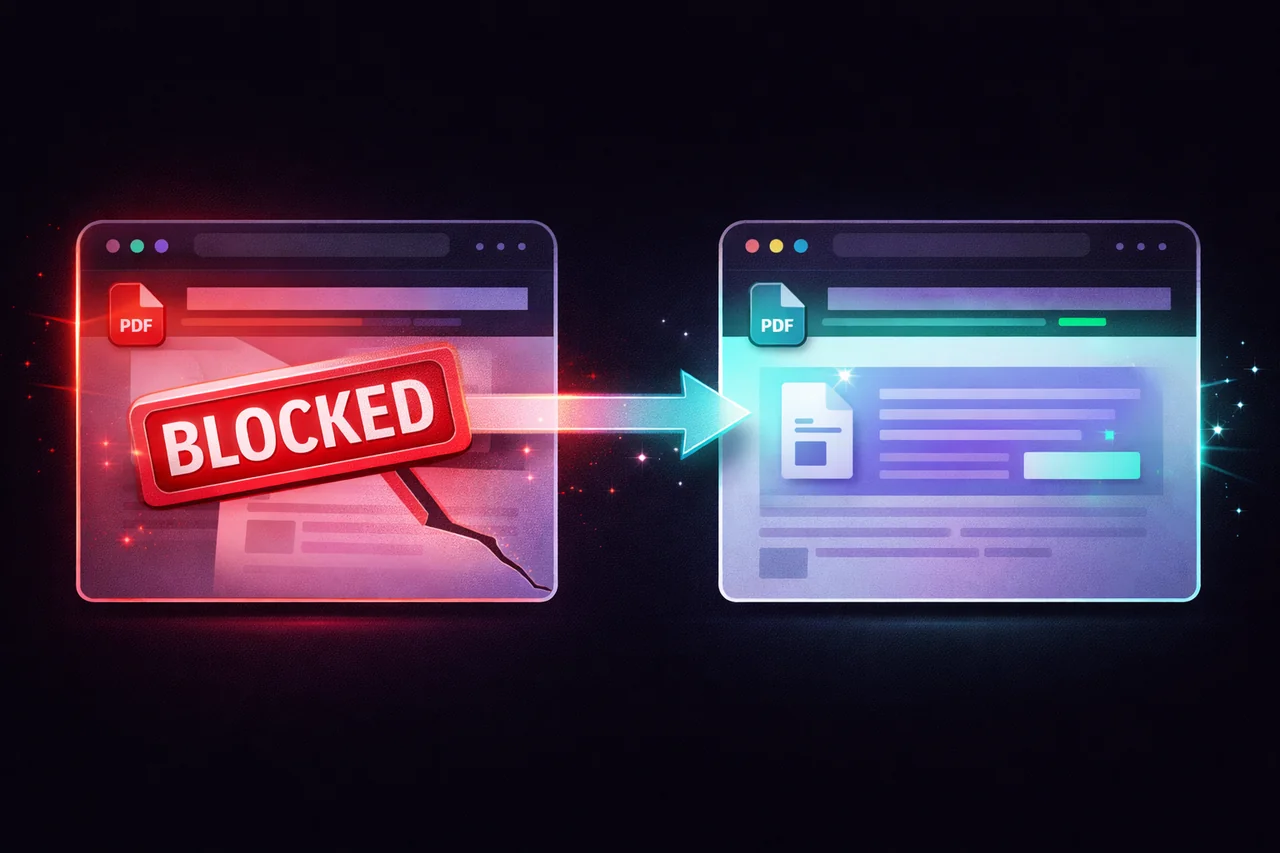
When most tools "redact" a PDF, they add a visual layer — a black rectangle — on top of the existing content. The underlying text layer remains completely intact. The document looks redacted. It isn't.
This matters enormously if you're handling:
- Legal documents with client information
- HR files containing personal data
- Financial records with account numbers or salary details
- Medical documents with patient information
- Contracts with commercially sensitive terms
In many jurisdictions, sharing a document that appears redacted but still contains recoverable personal data is a compliance violation. GDPR, HIPAA, and various data protection frameworks don't care whether you intended to protect the data — they care whether you actually did.
What Real PDF Redaction Does
True redaction doesn't hide text. It destroys it.
The correct process — used in professional legal and government workflows — involves rasterizing the affected areas of the document. This converts the page (or the specific redacted sections) into a flat image. There is no text layer remaining. There is nothing to extract, copy, or recover.
A properly redacted document cannot have its redactions reversed. That's the standard. Anything short of it is a black box overlay — cosmetic, not functional.
Why So Many Tools Get This Wrong
Most free PDF tools are built for convenience, not security. Their core features — merge, compress, convert — don't require deep engagement with how PDFs store data. Redaction was added as a checkbox feature without the underlying architecture to do it properly.
The result: tools that look like they redact but don't. Users who trust them because they don't know better. Documents circulating with sensitive data intact.
Some tools are getting better. Most still aren't.
The Upload Problem
Beyond the redaction quality issue, there's a second risk most users never consider: the upload itself.
When you upload a document to an online PDF tool, that file travels to a server you don't control. It's processed by infrastructure you can't inspect. It may be stored temporarily — or not so temporarily. Most free tools monetise through advertising and data. Your documents are the data.
For personal documents, this is an inconvenience. For confidential business documents, it's a serious exposure.
The only way to fully eliminate this risk is to process the document locally — inside your browser, without the file ever leaving your device.
How to Redact a PDF Properly
Here's what proper PDF redaction looks like in practice:
Step 1: Choose a tool that permanently destroys the underlying text Not a tool that draws boxes. A tool that rasterizes the redacted content, rendering it permanently unrecoverable. Ask specifically: does this tool rasterize redacted areas, or does it apply a visual overlay?
Step 2: Choose a tool that processes locally Your file should never leave your device. Client-side processing means the PDF is handled entirely within your browser — no uploads, no servers, no third-party access.
Step 3: Redact, then verify After redacting, try to select or copy the text in the redacted area. If you can select it, the redaction failed. A properly rasterized document will return no selectable text in the affected areas.
Step 4: Strip the metadata Even after redacting visible content, PDF files carry metadata — author name, creation date, revision history, software used. Depending on the document, this metadata can be as revealing as the content. Stripping metadata should be part of any serious redaction workflow.
EdgeDocs: Built for Real Redaction
EdgeDocs was built specifically to solve this problem.
When you redact a document with EdgeDocs, the underlying text is permanently destroyed — not covered. The affected areas are rasterized directly in your browser. There is no recoverable text layer.
And because EdgeDocs runs entirely client-side, your file never leaves your device. No uploads. No servers. No third-party access to your documents. Everything happens locally, in your browser, in seconds.
You can also strip metadata in the same workflow — removing hidden document properties before the file goes anywhere.
The Bottom Line
If you've used a free online tool to redact a PDF and assumed the job was done, it's worth verifying. Open the document, try to select the redacted text, and see what happens.
Real redaction is permanent. It destroys the data, not just the view. And it should never require you to hand your document to a server you don't control.
If you need to redact sensitive information from a PDF without risking exposure, try EdgeDocs' Redact PDF tool — it processes everything in your browser so your files never leave your device. For documents with large amounts of PII, our Auto-Redact PII tool can automatically detect and remove patterns like SSNs, emails, and phone numbers.
That's the standard. Make sure the tool you're using meets it.
Ready to try secure PDF processing?
20+ privacy-first tools that process files entirely in your browser. No uploads, no servers, no risk.
Try EdgeDocs Free